
Model Configuration
nunq supports multiple AI model providers. Administrators configure which models are available to the organization and set usage limits.
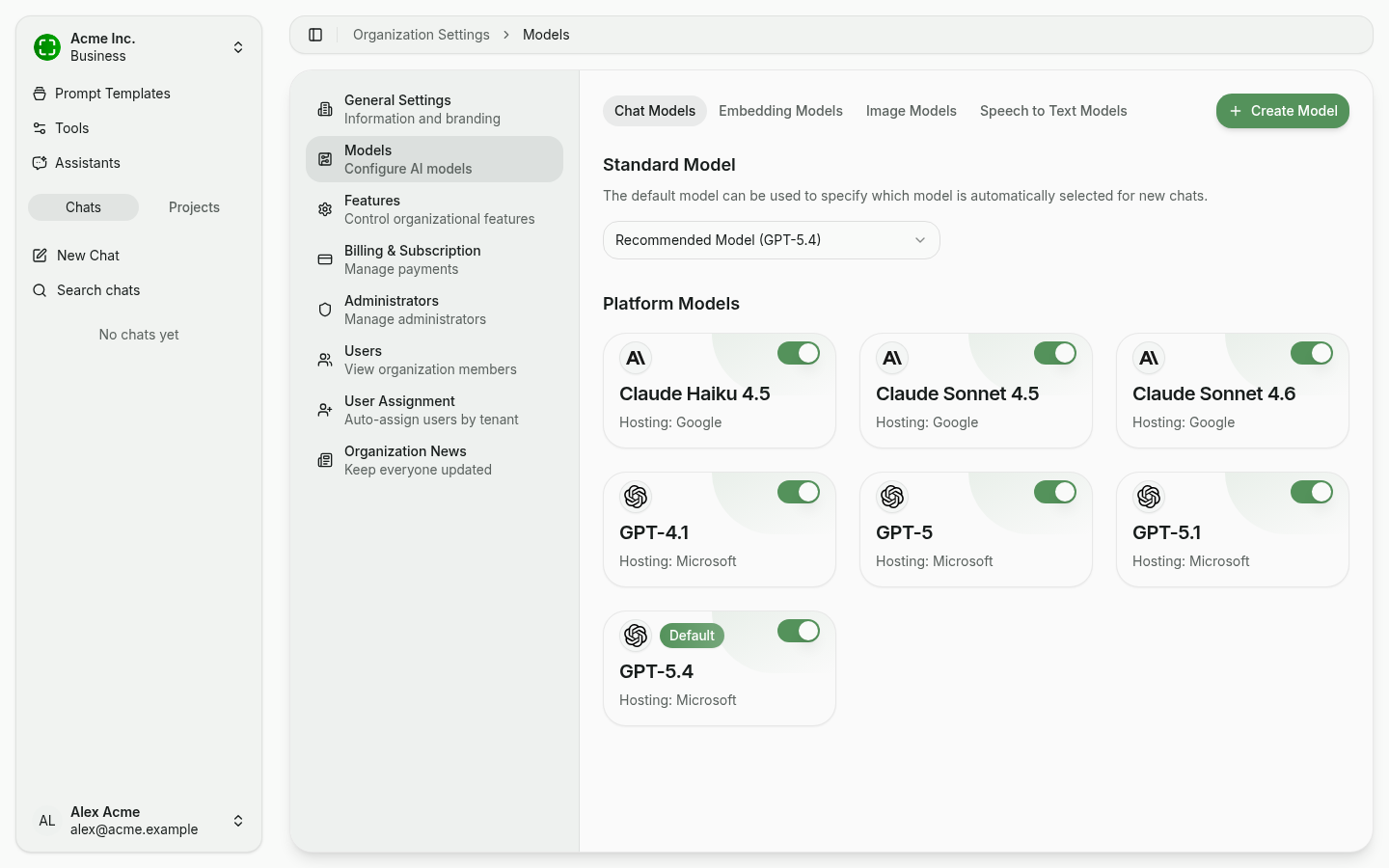
Anatomy of the Models Page
The models page is split into four tabs by capability:
- Chat Models — conversational models for the regular chat
- Embedding Models — models for vectorising knowledge sources (RAG)
- Image Models — image generation models
- Speech to Text Models — models for transcribing voice recordings
Within each tab you'll see:
- Standard Model — The model that is automatically selected for new chats.
- Platform Models — A tile view of all models nunq provides, with hosting info (e.g. Microsoft, Google) and a toggle to enable them for the organization.
- Create Model (top right) — Add your own model, e.g. your own Azure OpenAI deployment or a self-hosted Ollama instance.
Adding a Model
To add a new AI model:
- Navigate to Organization Settings → Models.
- Pick the appropriate capability tab (e.g. Chat Models).
- Click + Create Model.
- Fill in the required configuration fields (see below).
- Save the model.
Supported Providers
nunq integrates with the following AI model providers:
- Azure OpenAI — Microsoft-hosted OpenAI models with enterprise security
- OpenAI — Direct access to OpenAI models
- Anthropic — Claude models from Anthropic
- AWS Bedrock — AI models hosted on Amazon Web Services
- Google Vertex AI — AI models hosted on Google Cloud Platform
- Ollama — Self-hosted open-source models
- Mistral — Models from Mistral AI
Configuration Fields
When adding a model, you need to provide:
| Field | Description |
|---|---|
| Provider | The model provider (see list above) |
| Model name | The provider's model identifier (e.g., gpt-6.1-sol) |
| API key | Your API key for the provider |
| Endpoint | The API endpoint URL (required for Azure OpenAI and self-hosted providers) |
| Display name | A friendly name shown to users |
API Key Security
All API keys are encrypted at rest in the database. Keys are never exposed in the user interface after they have been saved. Only the backend service accesses the decrypted keys when making API calls.
Usage Quotas
Administrators can set usage limits on each model to control costs:
- Hourly token limit: Maximum number of tokens that can be consumed per hour across the organization.
- Daily token limit: Maximum number of tokens that can be consumed per day.
- Request limit: Maximum number of API requests allowed within a time period.
When a quota is reached, users will see a notification and will need to wait until the limit resets or switch to a different model.
Enabling and Disabling Models
Each model has a toggle in the tile view:
- Enabled: The model is available for users to select in conversations.
- Disabled: The model is hidden from users and cannot be used.
Disabling a model does not delete its configuration. You can re-enable it later without reconfiguring it.
Default Models
Use the Standard Model picker to designate the model that is automatically selected for new chats. By default the Recommended Model is active, which always tracks the current best platform model.
There is one default per capability:
| Capability | Description |
|---|---|
| Chat | The default model for general conversations |
| Reasoning | The default model for tasks that require advanced reasoning |
| Image | The default model for image generation |
| Embedding | The default model for generating text embeddings (used by knowledge bases) |
| Speech-to-text | The default model for transcribing audio input |
Setting defaults ensures that users always have a model selected when they start a new conversation, even if they have not chosen one explicitly.