
Organization Settings
Organization settings allow administrators to configure the identity and global defaults for their nunq deployment.
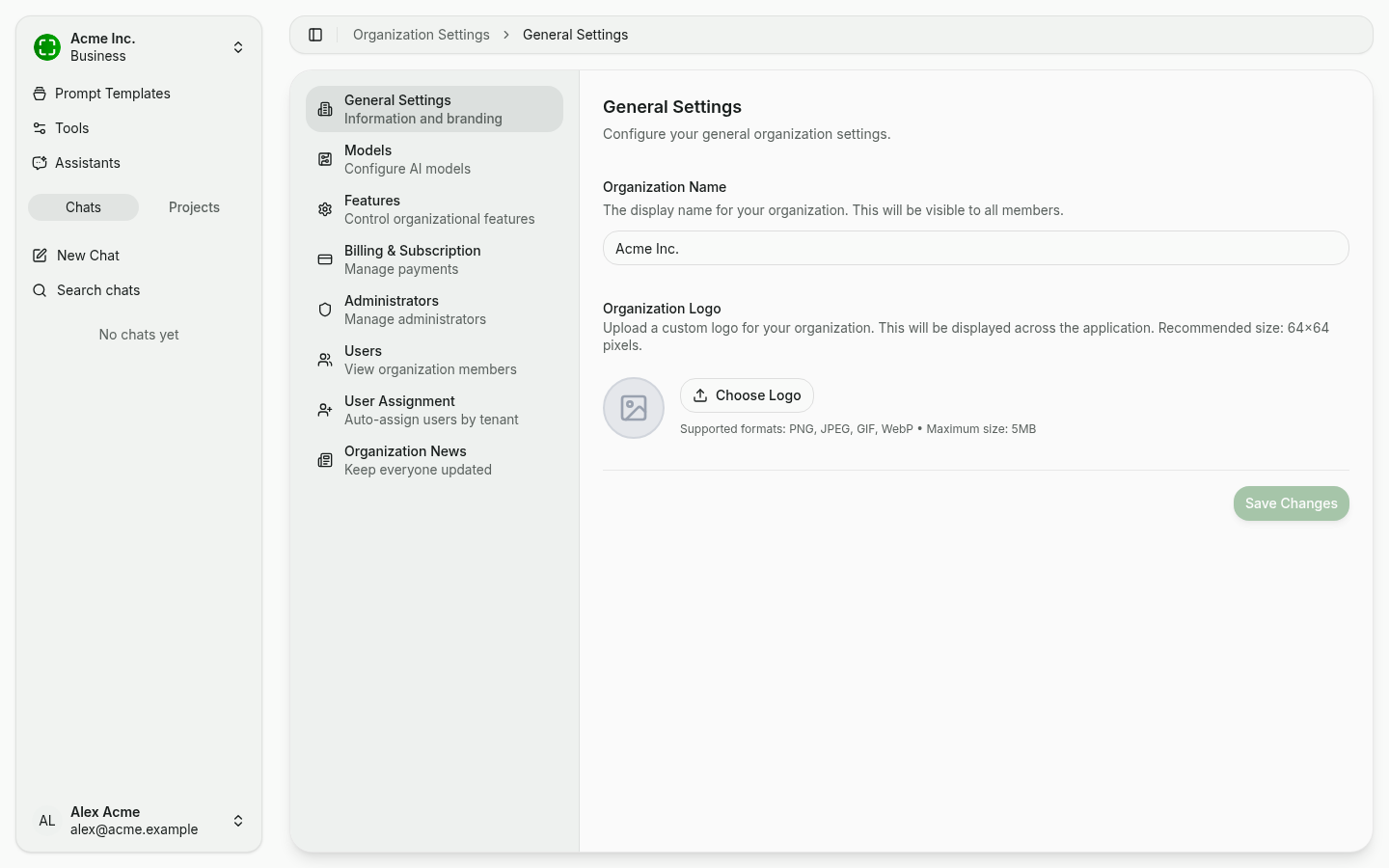
Accessing Organization Settings
Only users with the administrator role can access organization settings.
- Sign in to the nunq web application.
- Open the organization switcher at the top-left of the sidebar and choose Organization Settings.
- The left navigation of the settings page contains:
- General Settings — name and logo
- Models — AI model configuration
- Features — feature toggles
- Billing & Subscription — plans and invoices
- Administrators — admin management
- Users — seats and members
- User Assignment — auto-assignment via Microsoft Entra
- Organization News — internal announcements
General Settings
Organization Name
Set the display name for your organization. This name appears in the organization switcher and is visible to all members.
Organization Logo
Upload a custom logo that will be displayed in the application. Supported formats include PNG, JPEG, GIF and WebP. The maximum file size is 5 MB and the recommended size is 64×64 pixels.
Managing Your Configuration
Changes are applied explicitly with Save Changes and then propagate to all users in the organization. It is recommended to coordinate changes with your team, especially when modifying settings that affect the user experience.
Organization-Wide Defaults
Administrators can set defaults that apply to all users, including:
- Default AI models for different capabilities (chat, reasoning, image generation, embedding, speech-to-text). See Model Configuration for details.
- Feature toggles to enable or disable specific capabilities across the organization. See Feature Toggles for details.
- App policies for the desktop app. See Feature Toggles for details.