
User Assignment with Microsoft Entra
User Assignment lets Microsoft Entra users from your tenant join your nunq organization automatically — without inviting each person manually. You publish an allowlist of email domains, and new users from your tenant land directly in your organization the first time they sign in.
This page is written as a how-to for IT administrators. It explains what the feature does, what you need, and how to enable it.
Why User Assignment?
Without User Assignment, every new Microsoft sign-in creates its own empty nunq organization. In larger tenants this quickly leads to a sprawl of one-person organizations that you have to merge by hand.
With User Assignment turned on, the first sign-in of an employee goes like this:
- nunq recognizes that the person is coming from your Microsoft tenant.
- If their email domain is in your allowlist, they are added to your organization.
- Depending on the setting, they are activated immediately or wait for your manual approval.
What you'll need
| Requirement | Notes |
|---|---|
| Microsoft sign-in | The feature is only available for organizations whose admin signs in with a Microsoft account. |
| Paid plan | Personal or standalone organizations cannot enable the feature. |
| Microsoft administrator role | The person who confirms activation must hold a sufficient admin role in your Microsoft tenant (see below). |
Required Microsoft role
When you verify, Microsoft checks whether the account you're signed in with holds one of these roles in your tenant:
- Global Administrator
- Privileged Role Administrator
- Application Administrator
- Cloud Application Administrator
Other roles (for example Helpdesk Administrator or User Administrator) are not sufficient.
What permissions Microsoft asks for
During verification, nunq only asks Microsoft to confirm that you're signed in and to read your own role membership. It does not ask for read or write access to other users, groups, or your directory — just a one-off confirmation that you're an administrator.
Setup in three steps
Step 1 · Define the domains
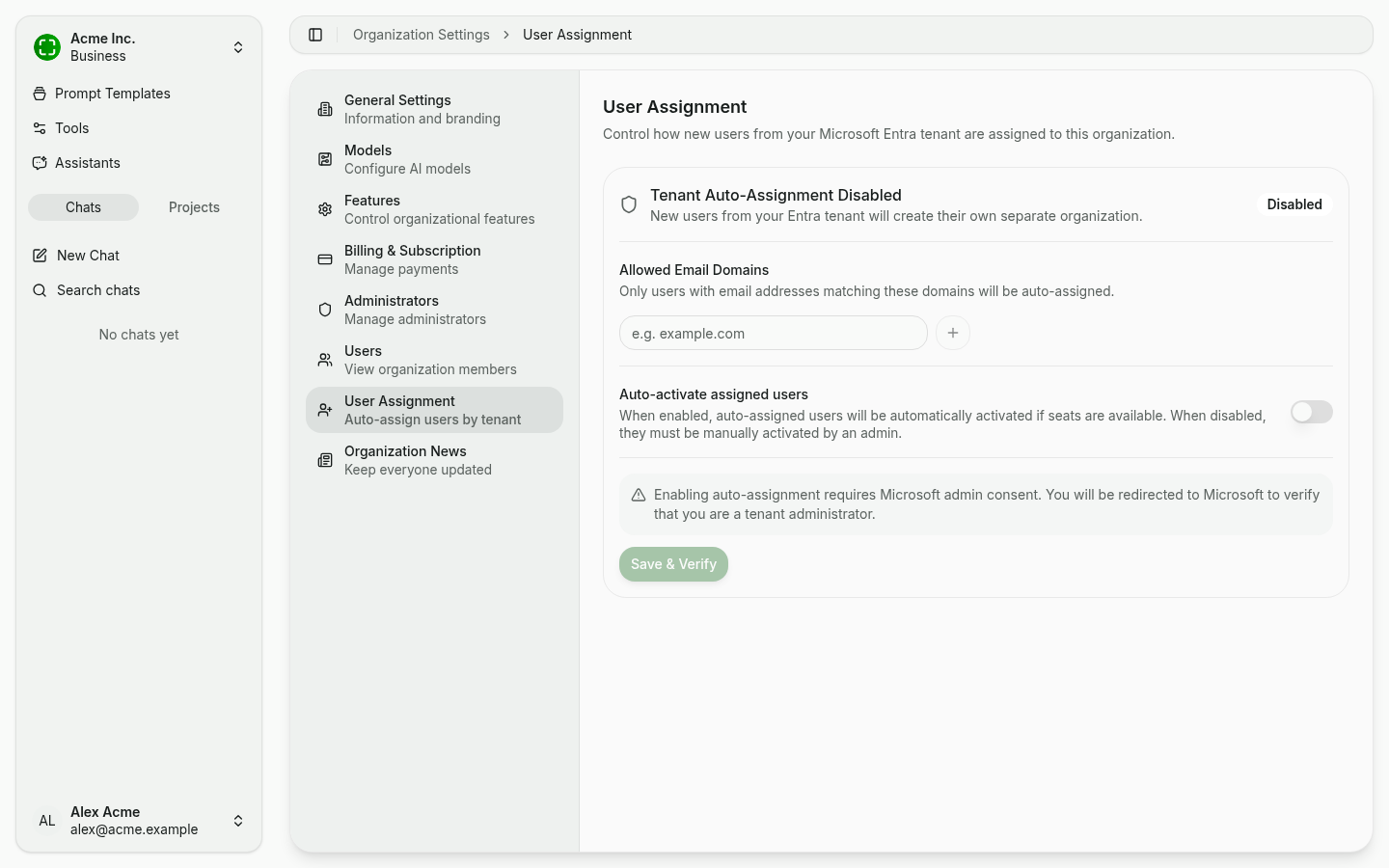
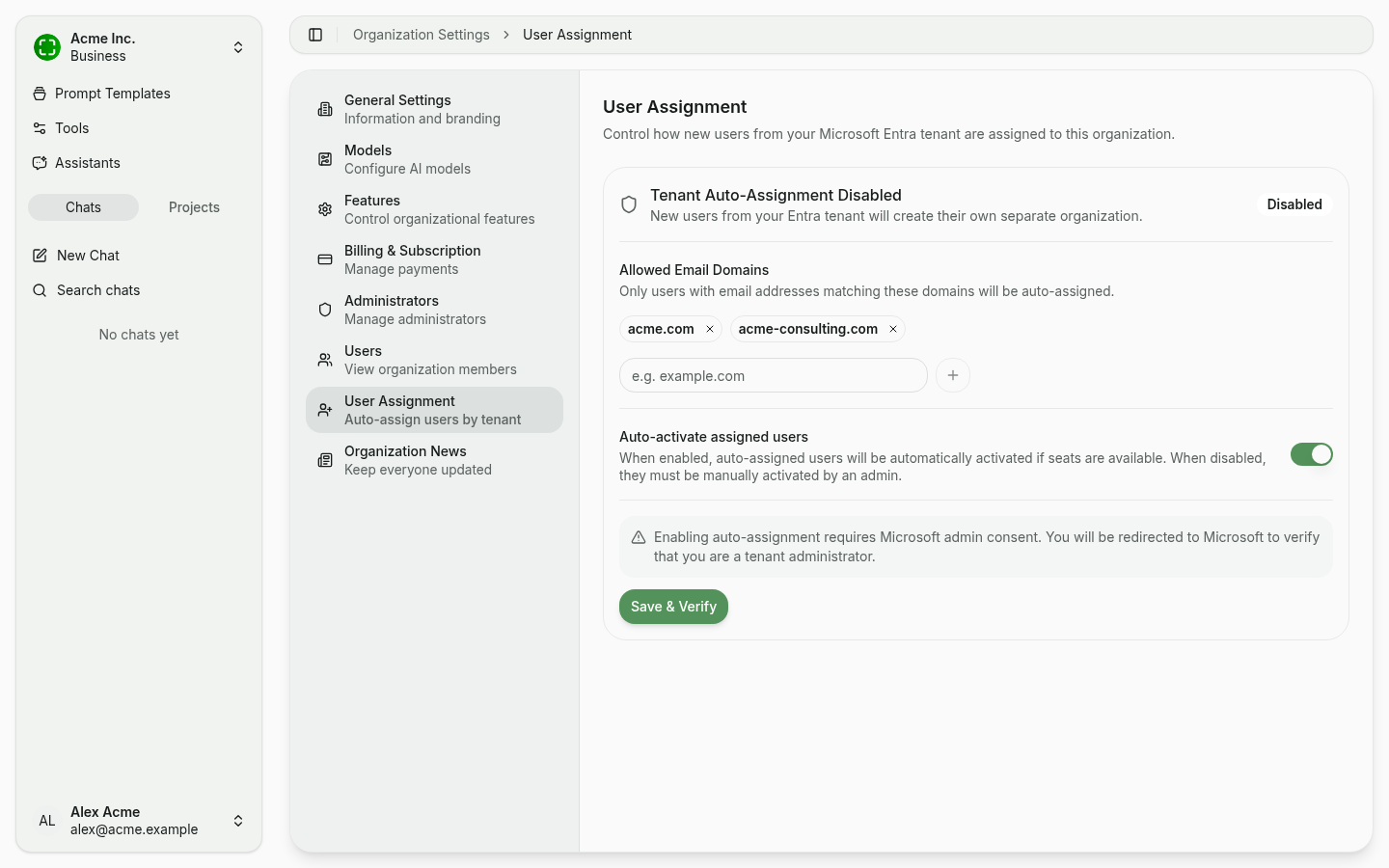
- Open Organization Settings → User Assignment.
- Under Allowed Email Domains, type each domain and press + or Enter.
- (Optional) Toggle Auto-activate assigned users so new users are usable immediately.
A few notes on domains:
- Examples:
acme.com,contoso.de,consulting.acme-group.com. - Subdomains are not matched implicitly —
acme.comwon't matcheu.acme.com. Add the subdomains you need separately. - Within the same Microsoft tenant, a domain may belong to one nunq organization only. If there's a conflict, nunq blocks the save with a message.
Step 2 · Start verification
Click Save & Verify. nunq redirects you to the Microsoft sign-in screen.
Sign in there with an account that
- belongs to the same Microsoft tenant as your nunq organization, and
- holds one of the administrator roles listed above.
Microsoft will ask you for consent for a short identity check. You only need to grant this consent once.
Step 3 · Confirmation
After a successful sign-in, Microsoft sends you back to nunq. Behind the scenes, nunq verifies that:
- you are who you claim to be,
- you really come from the expected Microsoft tenant, and
- you hold one of the accepted administrator roles.
When all three checks pass, the page flips to Enabled with a green shield icon. From that moment on, new sign-ins from your tenant are auto-assigned.
"Auto-activate assigned users"
This switch controls what happens once someone is auto-assigned:
| Setting | Result |
|---|---|
| Off (default) | The user lands in your organization but stays deactivated. They see a "please wait for activation" message; an admin must activate them under Users. |
| On | The user is activated immediately — provided a seat is available. If all seats are taken, they stay deactivated until a seat frees up. |
Recommendation:
- Smaller organizations with limited seats: keep the toggle off so you approve every activation.
- Larger tenants with plenty of seats: turn it on so employees can be productive right away.
Domain conflicts between organizations
If your company runs more than one nunq organization under the same Microsoft tenant — for example Acme HQ and Acme Consulting — their allowlists must not overlap. A given domain can only belong to one organization per tenant. If you try to save a domain that is already claimed elsewhere, nunq lists the conflicting domain so the two admins can sort it out internally.
Disabling
The page contains a Disable Tenant Assignment button. After confirmation:
- The status flips to Disabled.
- The domain list is cleared.
- Already-assigned users keep their seat; only new sign-ins start creating their own organizations again.
No new Microsoft verification is required to disable.
What if something goes wrong?
| Message | Meaning & fix |
|---|---|
| "You must be a Tenant Administrator" | The account you used to verify doesn't hold any of the required Microsoft roles. Have a global administrator perform the verification instead. |
| "Microsoft account does not belong to this organization's tenant" | You signed in with a guest or personal Microsoft account. Use an internal employee account from your own tenant. |
| "Domains already claimed by another organization" | Another nunq organization in your tenant already owns one of those domains. Coordinate with the other admin or remove the domain on your side. |
| User isn't being assigned | Check that (a) sign-in is via Microsoft (not Google), (b) the email domain is listed verbatim, and (c) the user comes from your tenant. |
| User is assigned but stays deactivated | Auto-activate is off or no seats are available. Activate manually under Users, or add seats. |
Security at a glance
- Each activation requires a fresh Microsoft sign-in by an authorized person — existing sessions or cookies aren't enough.
- Users are matched only on Microsoft tenant + email domain. Other tenants or domains never see your organization's data.
- You can disable the feature at any time without removing anyone who has already been assigned.