
Chat Interface
The chat is the primary interface for interacting with AI models in nunq. It provides a rich, real-time conversational experience with support for multiple input types, modes, and output formats.
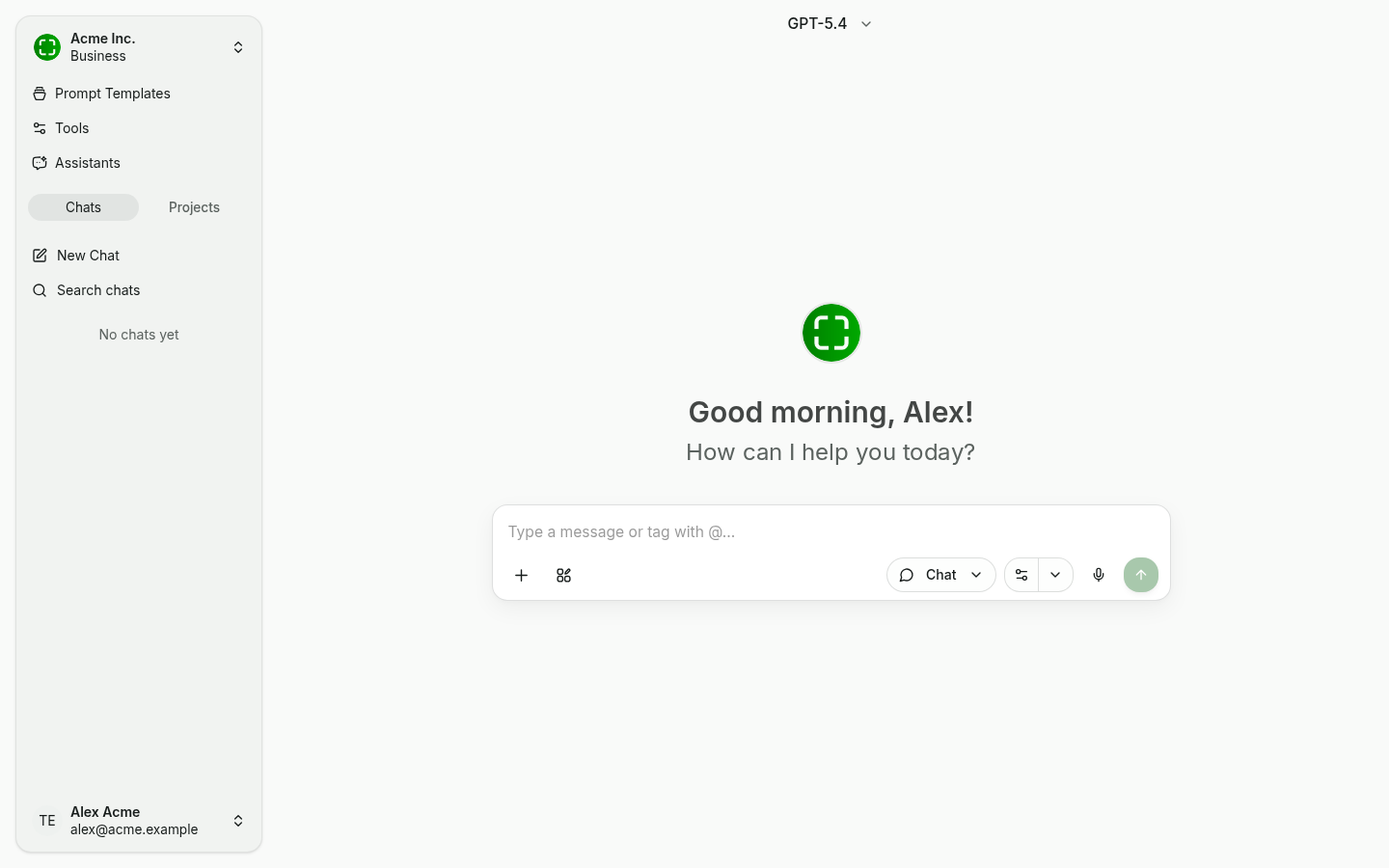
Anatomy of the Chat Screen
The chat screen has three main areas:
- Sidebar (left) — Organization switcher, sections for Prompt Templates, Tools, and Assistants, tab toggle between Chats and Projects, New Chat and Search chats actions, your conversation list, and the account menu.
- Model picker (top center) — Shows the currently active model. Click it to switch.
- Main area — Greeting, message history, and the input row with mode switcher, microphone, context buttons, and send button.
Starting a New Chat
To begin a conversation, click the New Chat button in the sidebar. Each chat is an independent conversation thread with its own context and history.
Selecting and Switching Models
Before or during a conversation, you can select which AI model to use. Click the model selector at the top of the chat to browse available models and switch between them.
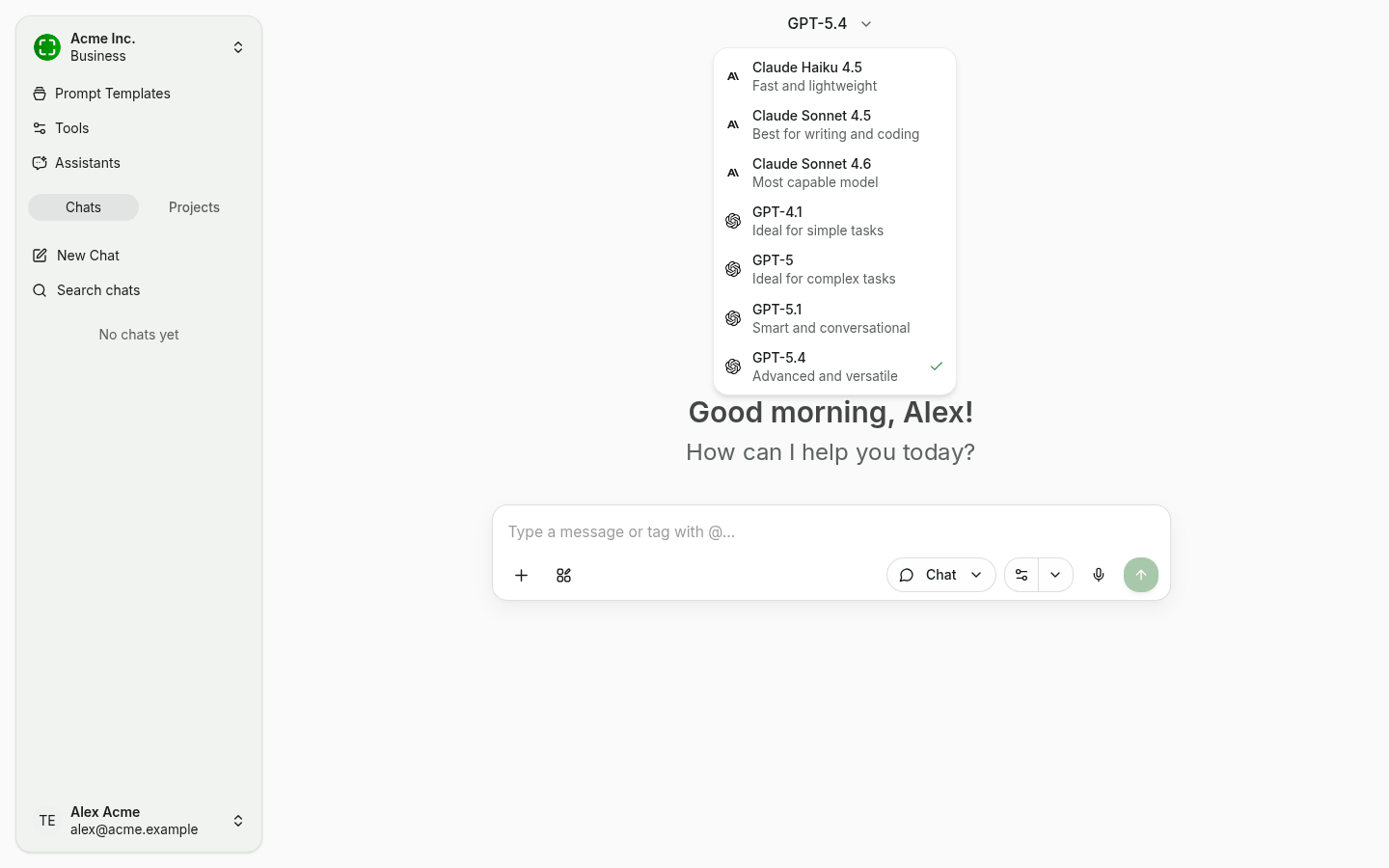
Different models have different strengths — some excel at reasoning tasks while others are optimized for speed. A short tagline next to each model ("Fast and lightweight", "Ideal for complex tasks", etc.) helps you choose. See Models for details on available providers and capabilities.
Message Composition
The message input supports rich text formatting. You can write plain text or use formatting options to structure your messages. The input area expands as you type, giving you space to compose longer prompts when needed.
Typing @ opens a picker that lets you reference assistants, prompt templates, or knowledge sources directly inside a message.
Chat Modes
nunq offers several specialized chat modes that change how the AI processes your request. You switch modes from the dropdown to the right of the input row.
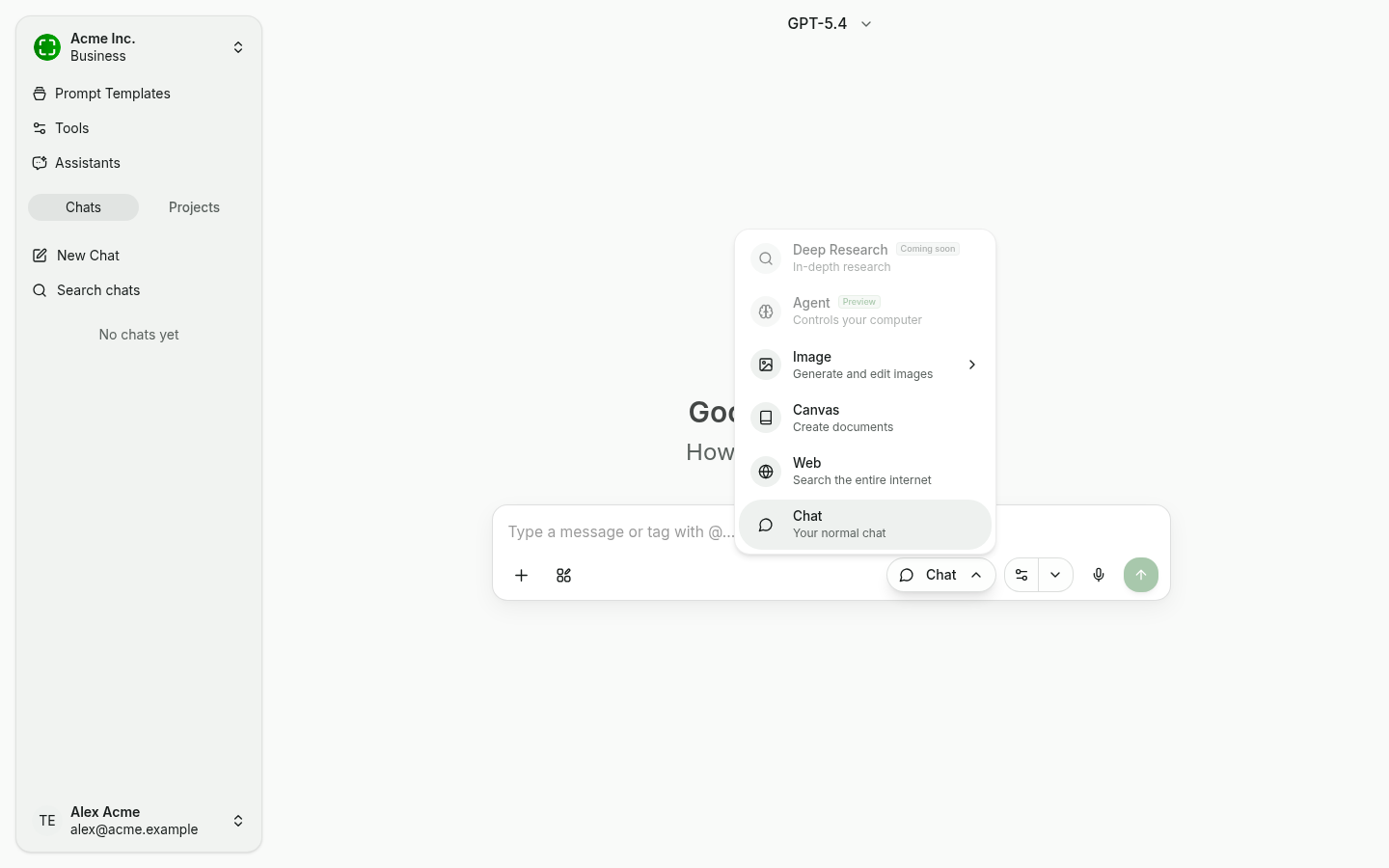
- Chat — Standard conversational interaction with the selected model.
- Web — The AI searches the web for current information before responding, providing up-to-date answers with source references.
- Canvas — The AI generates structured documents (text, code, or other content) in an editable canvas alongside the chat. See Creations & Export for more details.
- Image — Generate images from text descriptions using supported image generation models.
- Agent (Preview) — The AI autonomously plans and executes multi-step tasks, using available tools as needed to fulfill complex requests.
- Deep Research (Coming soon) — In-depth research for complex questions.
File Uploads
You can attach files directly to your messages for the AI to analyze. Supported file types include:
- PDF documents
- Microsoft Word documents (.docx)
- Microsoft Excel spreadsheets (.xlsx)
- Images (PNG, JPEG, and other common formats)
Drag and drop files into the chat input area or use the attachment button to upload. The AI will process the file content and use it as context for its response.
Voice Recording and Transcription
Click the microphone icon to record a voice message. nunq transcribes your speech to text using a speech-to-text model, then sends the transcribed text as your message. This is useful for hands-free interaction or when speaking is faster than typing.
URL Extraction
Paste a URL into the chat to automatically extract and include the web page content as context. The AI will read the page content and use it when formulating its response, saving you from having to copy and paste text manually.
Code Execution
When code execution is enabled, the AI can write and run Python code in a sandboxed environment. This is useful for data analysis, calculations, generating charts, and verifying programmatic solutions. The code runs securely and the output — including text results, tables, and visualizations — is displayed directly in the chat.
Streaming Responses
Responses from the AI are streamed in real time. You see the output as it is generated, token by token, rather than waiting for the full response to complete. This provides a faster, more interactive experience.
Message Actions
Each message in the conversation supports the following actions:
- Edit — Modify a previously sent message and regenerate the AI response from that point.
- Regenerate — Request a new response to the same message, useful if the first answer was not satisfactory.
- Copy — Copy the message contents to your clipboard.
- Delete — Remove a message from the conversation history.
Chat History
All your conversations are saved automatically. You can:
- Search past conversations by keyword from the sidebar.
- Browse your chat history grouped by date (Today, Yesterday, older).
- Manage conversations by renaming, moving them into a project, or deleting them.
Reasoning Display
For models that support chain-of-thought reasoning, you can expand the reasoning section to see how the AI arrived at its answer. This provides transparency into the model's thought process and is especially useful for complex analytical or logical tasks.
Tool Call Visualization
When the AI uses tools during a conversation (such as web search, code execution, or MCP integrations), the tool calls are displayed inline. You can see which tool was invoked, what input was provided, and what result was returned. This makes the AI's actions transparent and auditable.
Inline Citations and Source References
When the AI references external sources — such as web search results or knowledge source documents — it includes inline citations. You can click on a citation to view the original source, helping you verify the information and explore further.
Suggestions
After the AI responds, it may offer follow-up prompt suggestions. These are contextually relevant questions or next steps that you can click to continue the conversation without typing a new message. Suggestions help guide exploration of a topic and surface questions you might not have considered.
Safety Notice
Below the input field nunq shows a subtle reminder that you are interacting with an AI and that generated content can be inaccurate. Verify important information, especially for legal, medical, or financial topics.