
Projects
Projects let you group chats by topic, initiative, or area of work. Instead of managing a flat list of chats, you bundle related conversations under a named project — for easier navigation and a clearer overview.
INFO
Projects are a pure organizational aid. They store no instructions, knowledge sources, or context data and do not influence the AI's responses. If you want multiple chats to share a system prompt or a knowledge base, set up an Assistant instead.
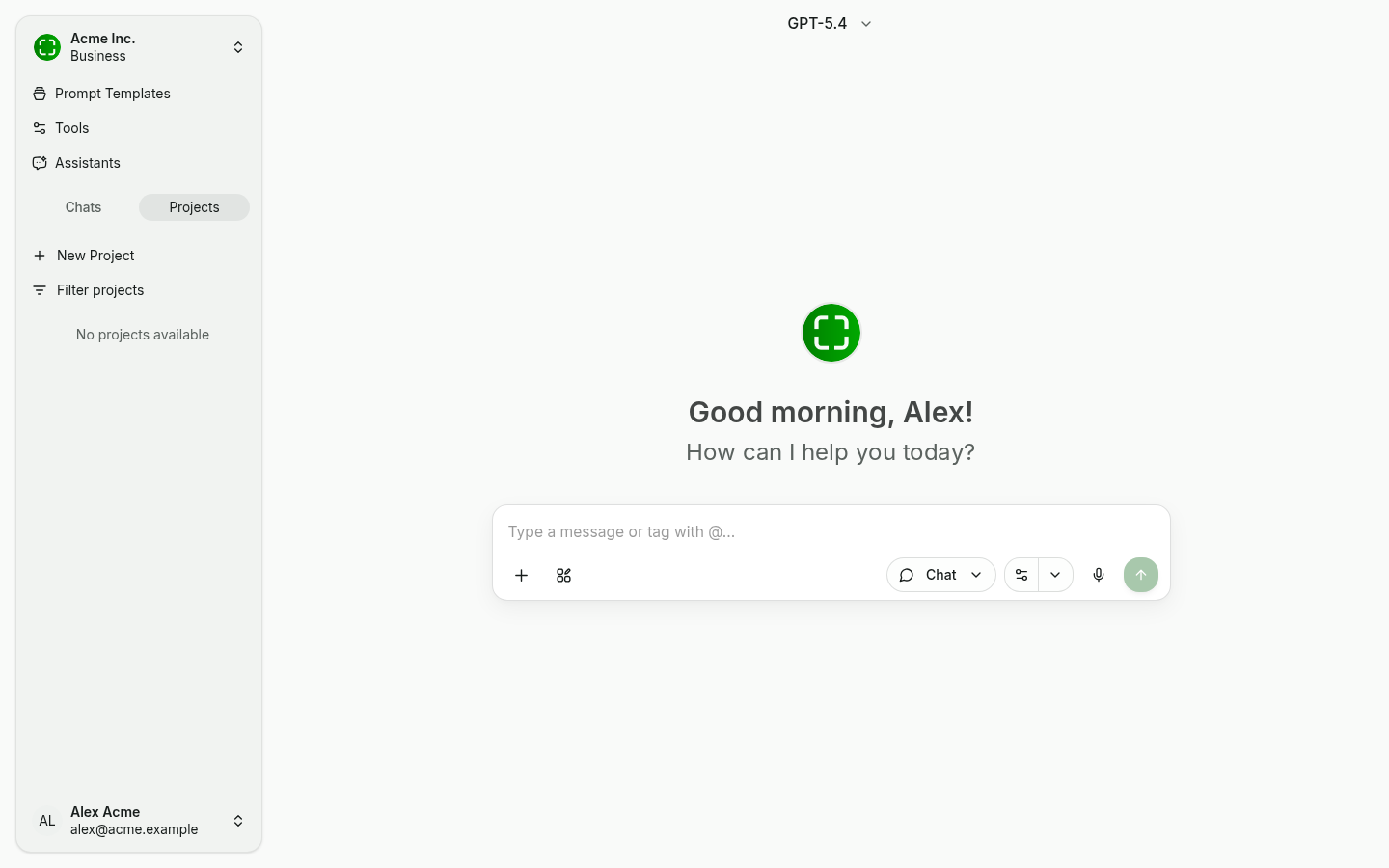
Create a project
The Projects section sits at the top of the left sidebar — directly below the logo and above the chat list.
- Click + New Project.
- In the dialog, enter a title and pick a color for the project label.
- Confirm with Create, or simply hit
Enterfrom the title field.
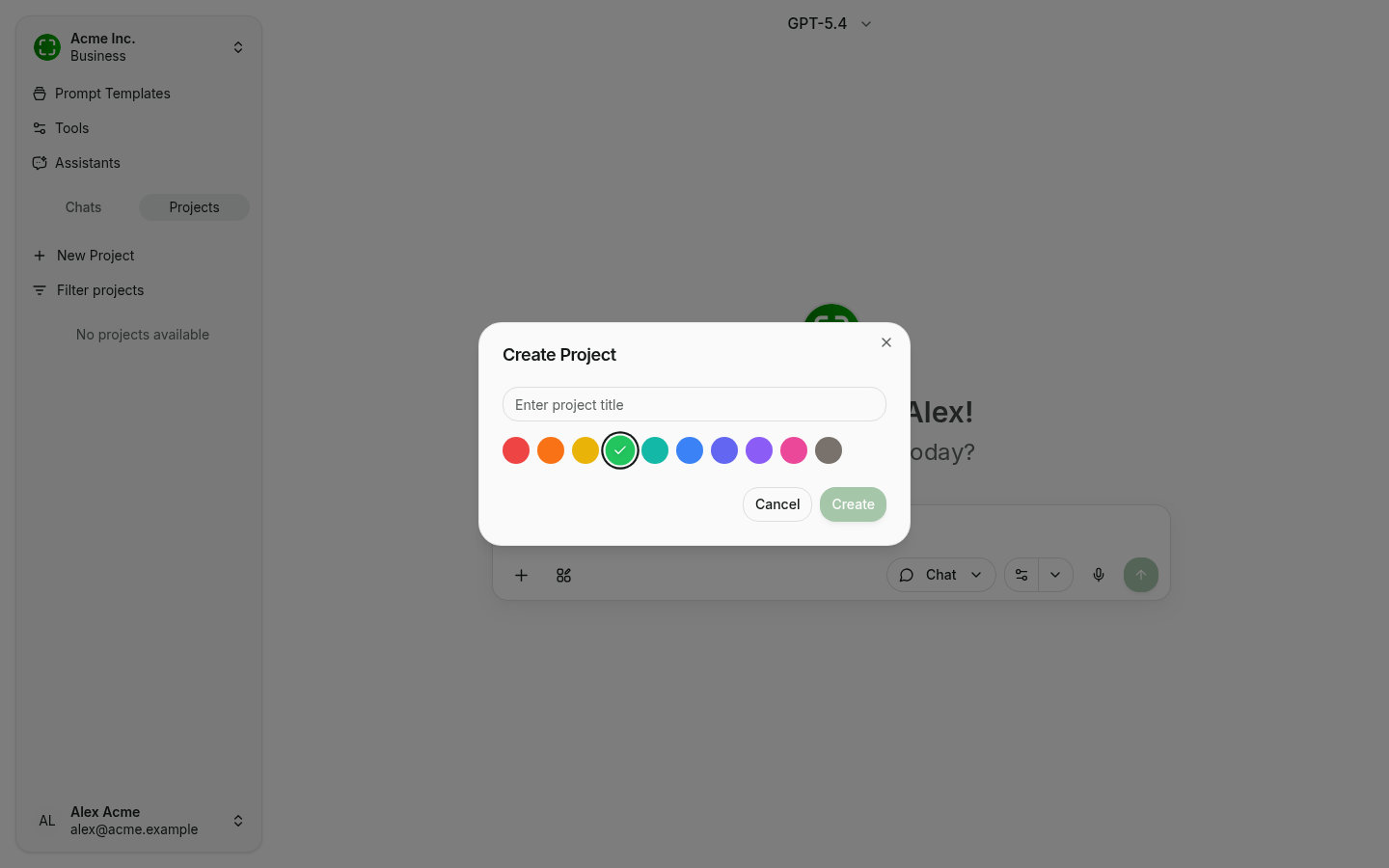
Pick a name that reflects the purpose — for example "Q3 marketing campaign" or "Product launch planning".
Manage a project
Hover over a project entry in the sidebar to reveal the … menu:
- Edit — Opens the same dialog as creation. Adjust the title and color here. The dialog also exposes a Delete project button.
- Close — Hides the project from the sidebar without deleting it. Hidden projects can be brought back any time via Show hidden projects at the top of the Projects section.
- Delete — Permanently removes the project. Caution: all chats inside the project are deleted along with it. A confirmation dialog gates this action.
Project view
Clicking the project name opens its detail view in the main area. You see every chat in the project as a card and can start a new conversation inside the project via + New Chat. The pencil icon next to the title opens the edit dialog.
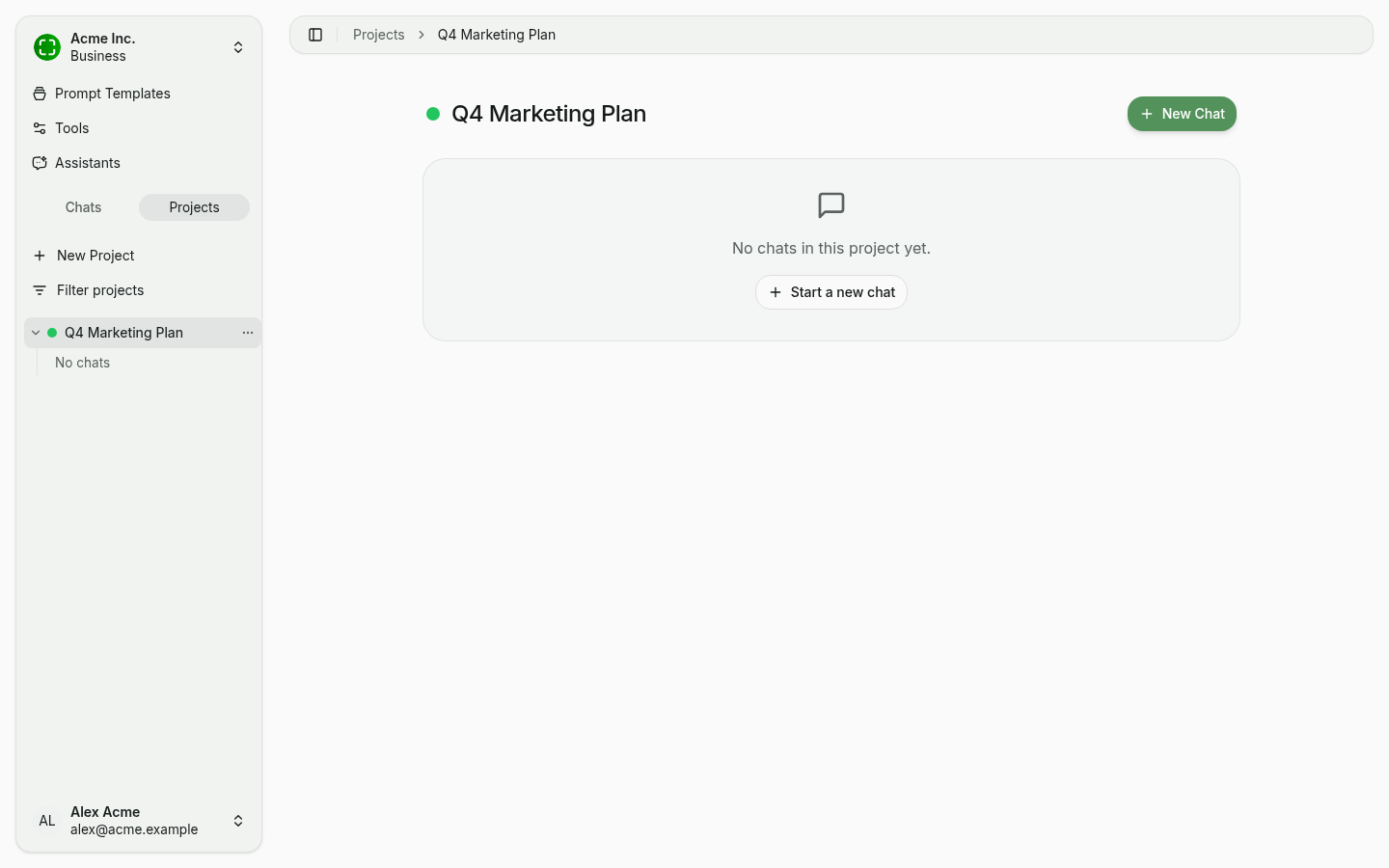
On each chat card, the … menu lets you:
- Move to project — switch the chat to a different project, or detach it (Remove from project).
- Delete — removes only the selected chat.
Sort chats into projects
In the sidebar, every chat also has a … menu with a Move to project submenu. Pick the target project, or create a new one from there. Drag-and-drop is not currently supported.
Expand and collapse projects
The chevron next to a project name expands or collapses its chat list. Each project initially shows the three most recent chats; when there are more, Show more expands the list and paginates further.
Stay organized with projects
Projects are especially valuable when you juggle several initiatives in parallel:
- Keep discussions on different topics separate and easy to find.
- Re-locate earlier conversations in the context of a specific initiative more quickly.
- Maintain a clear structure as your usage of nunq grows over time.