
Quick Start
This guide walks you through your first steps with nunq, from logging in to sending your first message.
Logging In
nunq uses Single Sign-On (SSO) through Microsoft Entra ID or Google. To log in:
- Open your browser and navigate to your organization's nunq instance.
- Click Sign in with Microsoft or Sign in with Google.
- Authenticate with your organizational account.
You will be redirected to the nunq interface after successful authentication. No separate account creation is needed.
Navigating the Interface
The nunq interface is organized around a sidebar on the left and a main content area.
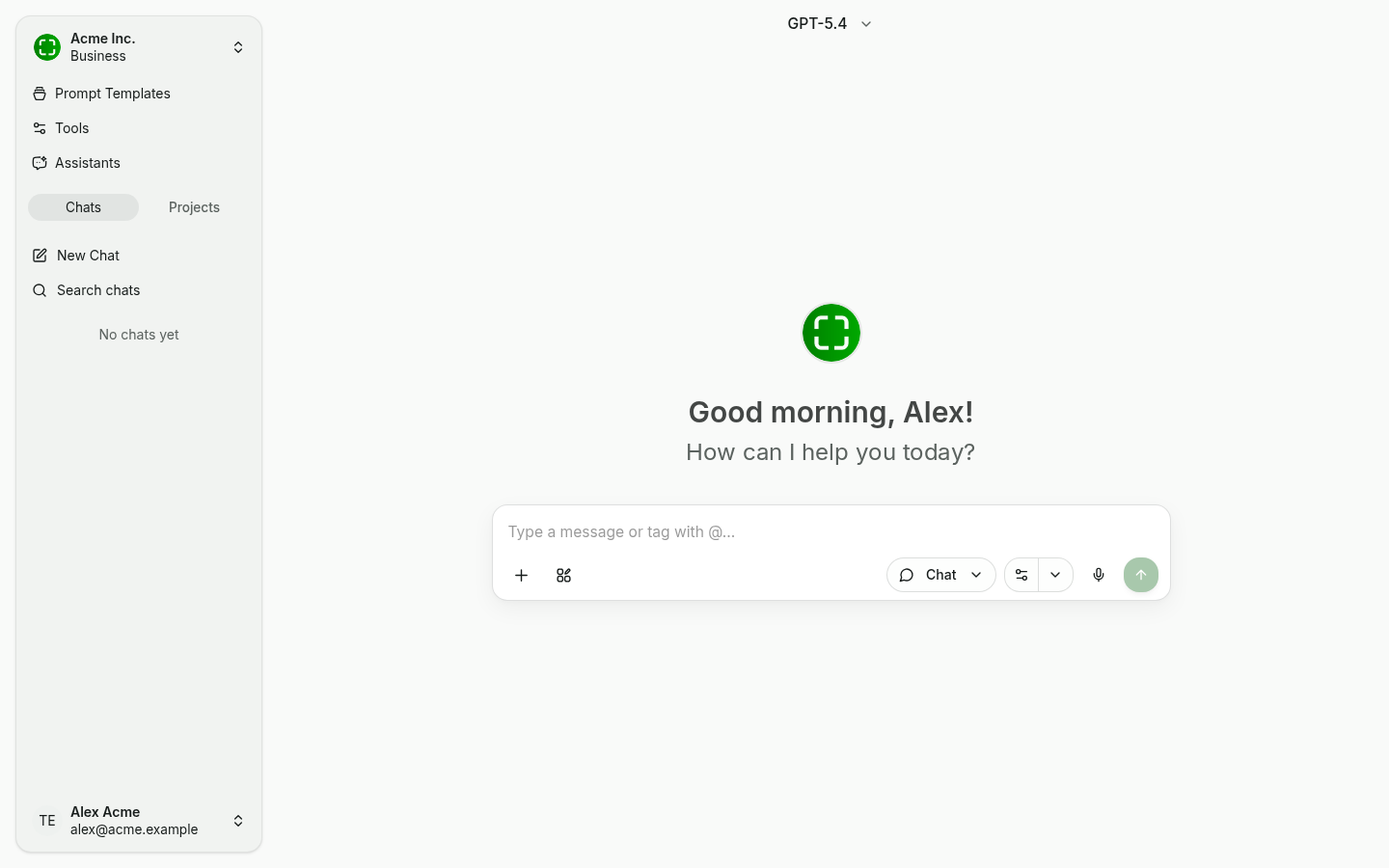
Sidebar. The sidebar contains:
- Organization switcher (top) — switch between organizations and open organization settings or analytics.
- Shortcuts to Prompt Templates, Tools and Assistants.
- Chats / Projects tabs — list your conversations or projects.
- Actions for New Chat and Search chats.
- Account menu (bottom) — account info, settings, language and logout.
Model picker sits at the top of the main area; mode and microphone sit to the right of the input field.
Starting Your First Chat
Click New Chat in the sidebar or the main content area.
In the model selector at the top of the chat, choose a model from the dropdown. Your organization may have multiple models available from providers such as OpenAI, Anthropic, or others.
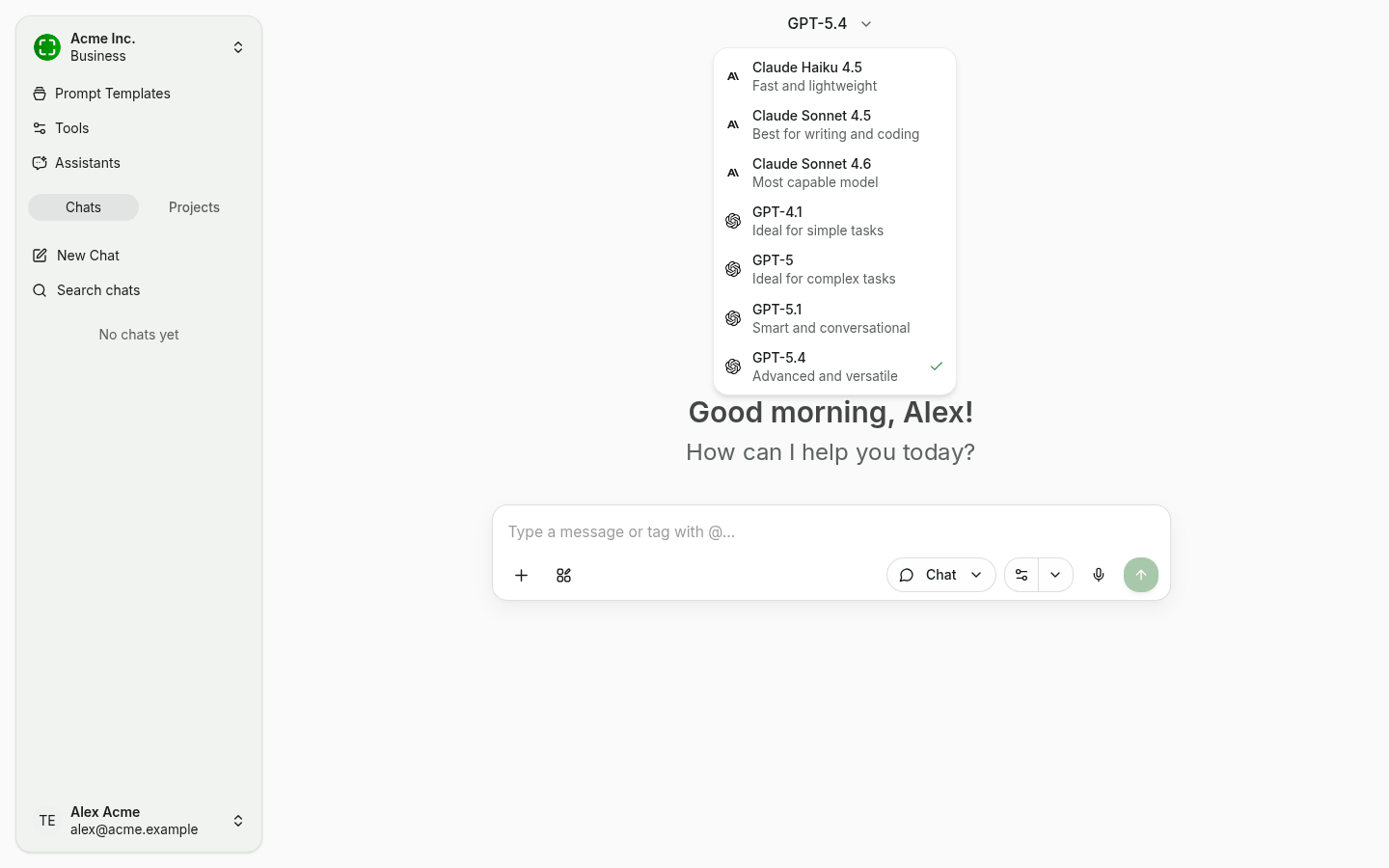
Type your message in the input field at the bottom.
Press Enter or click the send button.
The response will stream in real time as the model generates it.
Switching Modes
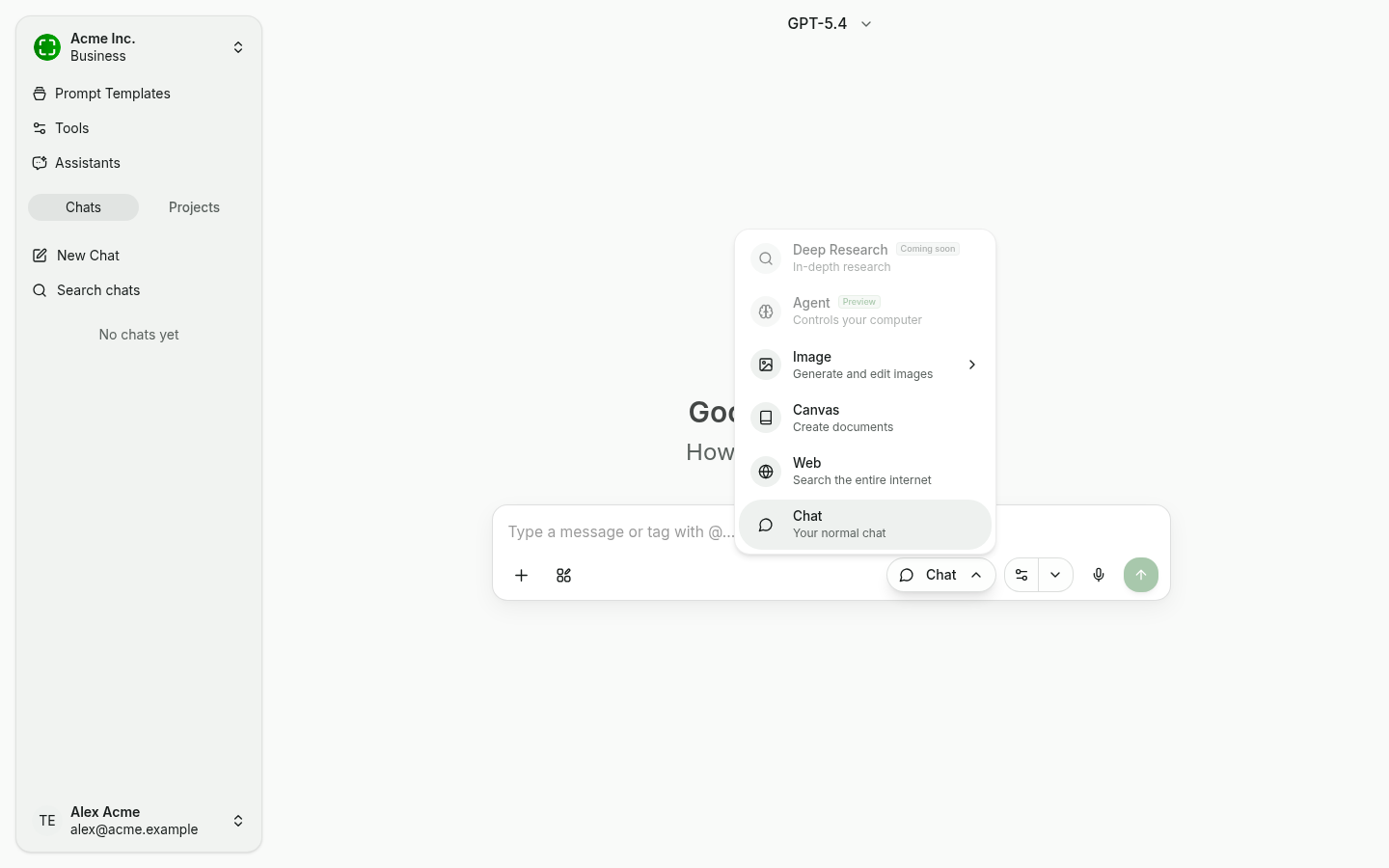
The dropdown to the right of the input field switches the chat mode: Chat, Web (with internet access), Canvas (for documents), Image (image generation), Agent (Preview), or Deep Research (Coming soon).
Switching Models Mid-Conversation
You are not locked into a single model for an entire conversation. To switch:
- Click the model selector at the top of the chat.
- Choose a different model from the dropdown.
- Your next message will be processed by the newly selected model.
Previous messages in the conversation remain visible and provide context to the new model.
Using an Assistant
Assistants are pre-configured with specific instructions, models, and optionally attached knowledge sources. To use one:
- Navigate to Assistants from the sidebar.
- Browse the available assistants. Some are shared across your organization; others may be personal ones you have created.
- Click on an assistant to start a new conversation with it.
The assistant's instructions, model selection, and knowledge sources are applied automatically.
Uploading a File
You can attach files to your messages for the AI to analyze:
- In an open chat, click the plus icon in the input area, or drag and drop a file directly into the chat.
- Add your message describing what you want the AI to do with the file.
- Send the message.
The AI will process the file contents alongside your message.
Desktop App
For desktop-wide access without switching to your browser, nunq offers a desktop app. Once installed, you can invoke the overlay from any application to ask questions, analyze selected text, or get AI assistance — all without leaving your current workflow.
See the Installation & Setup page for details on getting started with the desktop app.