
Assistants
Assistants are pre-configured AI personalities with custom instructions and capabilities. They allow you to tailor the AI's behavior for specific tasks, workflows, or domains without having to repeat setup instructions in every conversation.
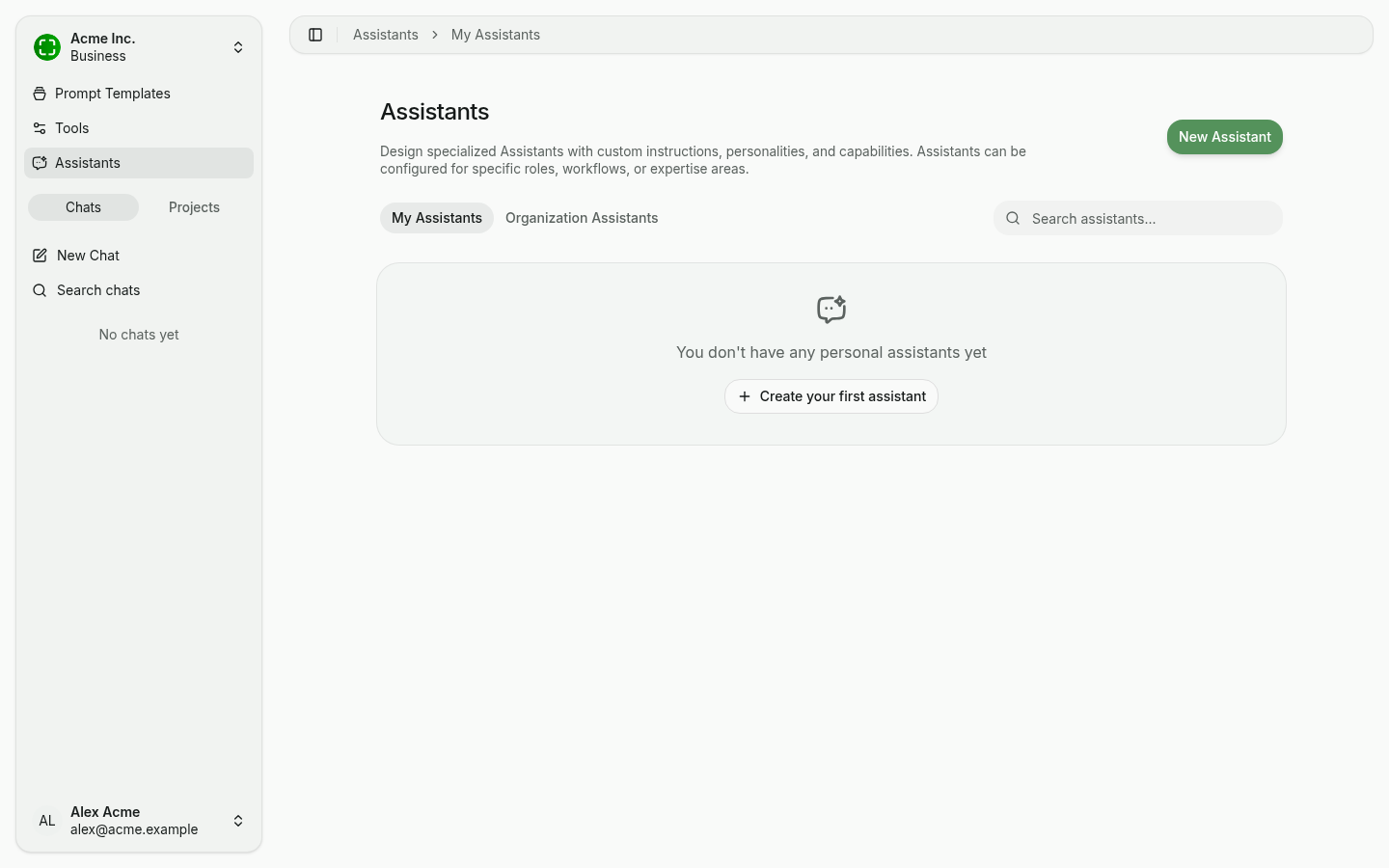
Personal vs. Organization Assistants
There are two types of assistants:
- Personal Assistants — Created by any user for their own use. Only the creator can see and use a personal assistant. You can later share a personal assistant with specific colleagues, a group, or your entire organization — see Sharing.
- Organization Assistants — Created by administrators and shared with all members of the organization. These are useful for standardizing AI behavior across teams, such as a "Customer Support Agent" or a "Legal Document Reviewer."
Switch between the two with the My Assistants and Organization Assistants tabs. A search bar filters the list by name or description.
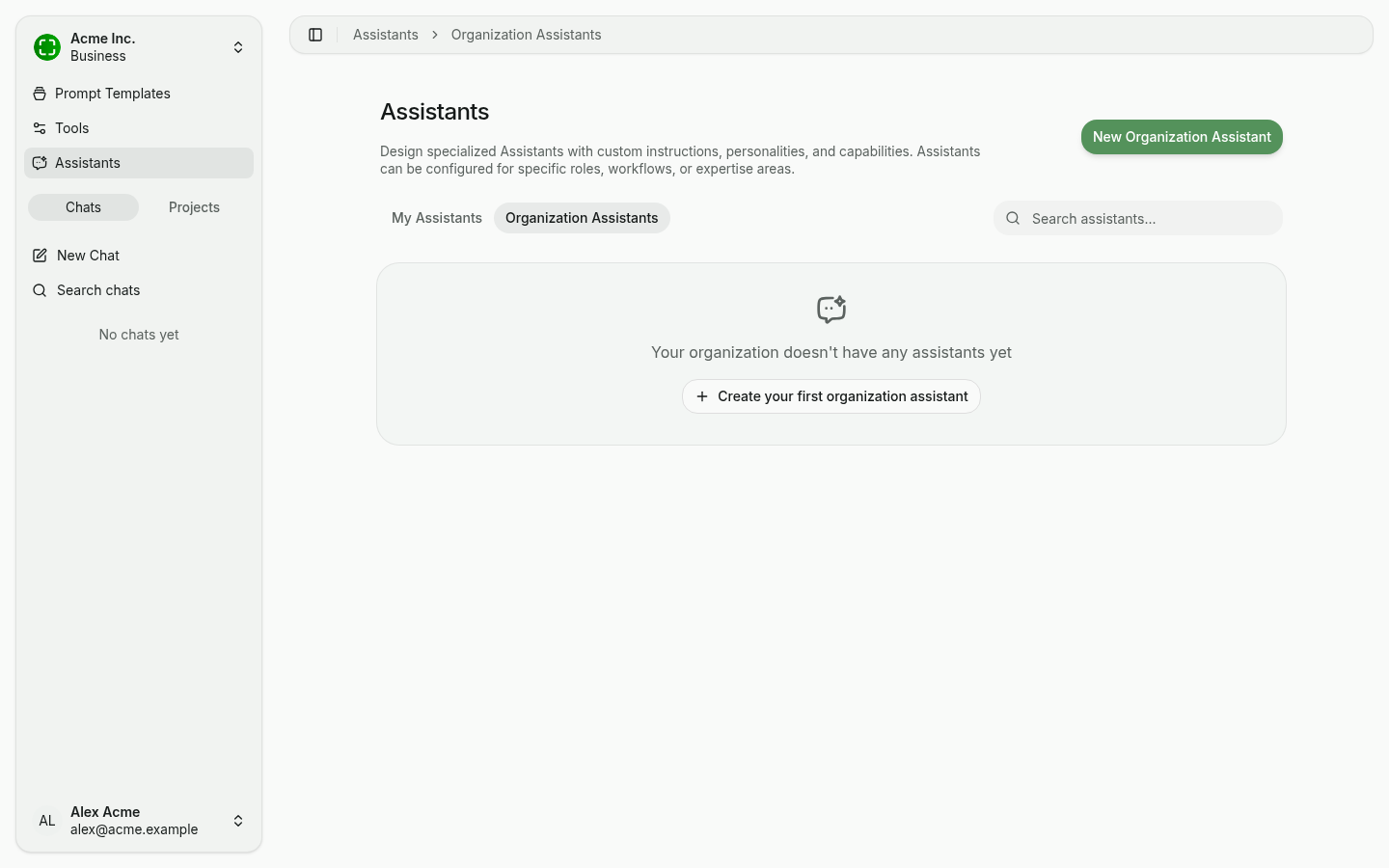
Creating an Assistant
To create a new assistant, click New Assistant in the top right (or New Organization Assistant if you switched tabs). You land directly in the editor — changes are auto-saved (you'll see a "Saved" indicator in the top right).
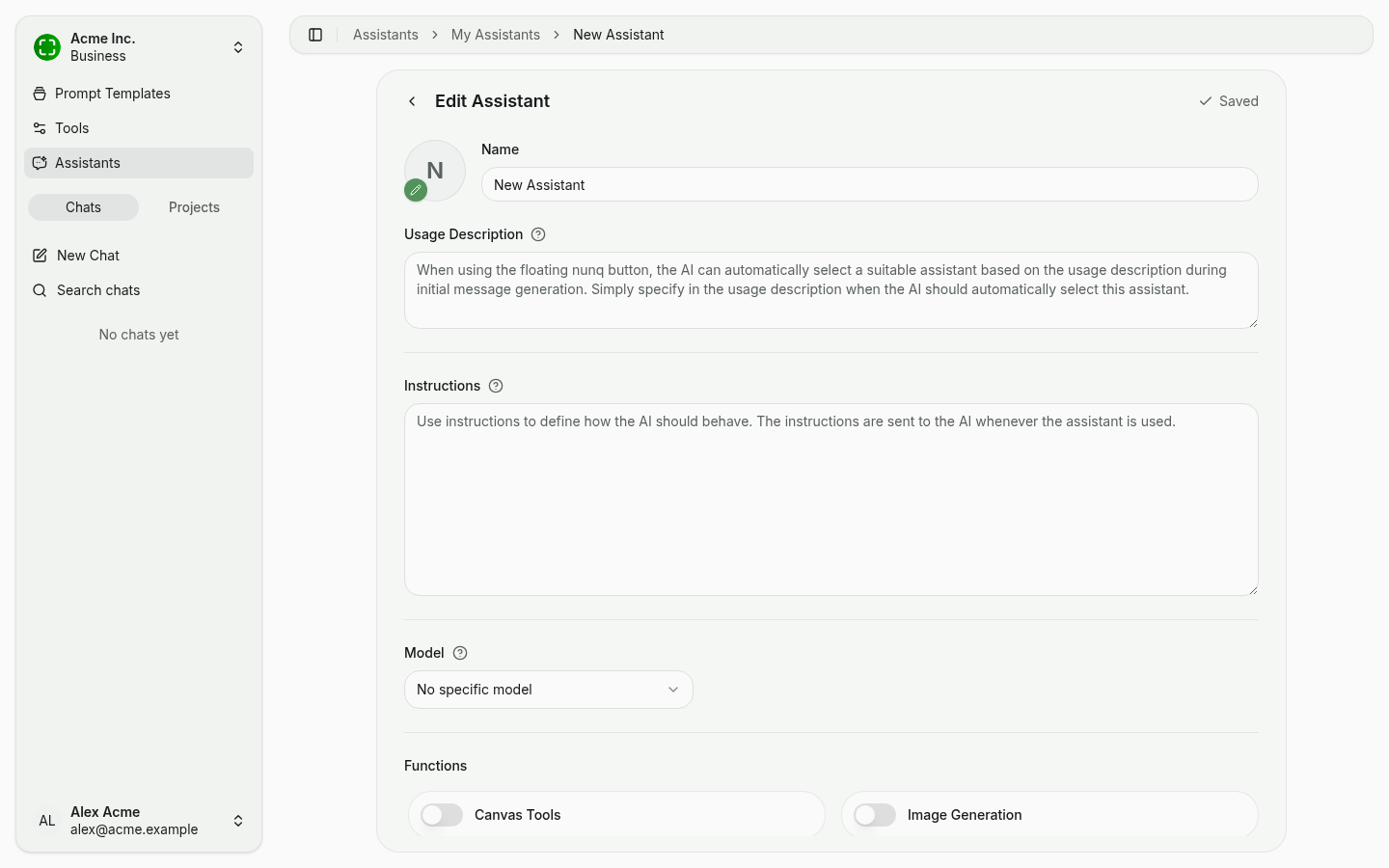
Name, Description, and Icon
Give your assistant a clear name and description so you (and your team, for organization assistants) can quickly understand its purpose. Click the avatar to upload a custom icon or pick a colour.
Usage Description
The usage description is consumed by the auto-assistant routing of the floating nunq button in the desktop app. Briefly describe when this assistant should be picked automatically — e.g. "When the user asks about contract clauses".
Instructions (System Prompt)
Instructions define the assistant's behavior, personality, and constraints. This is the custom prompt that is sent to the AI at the beginning of every conversation with this assistant. For example, you might instruct the assistant to always respond in a specific language, follow a particular format, or focus on a certain domain.
Associated AI Model
Pick the AI model this assistant should use, or leave it on No specific model to always use whatever model the user selects. Different models have different strengths, so choose one that fits the assistant's purpose. For instance, a reasoning model may be better suited for analytical tasks, while a faster model might be preferred for quick Q&A.
Enabled Features
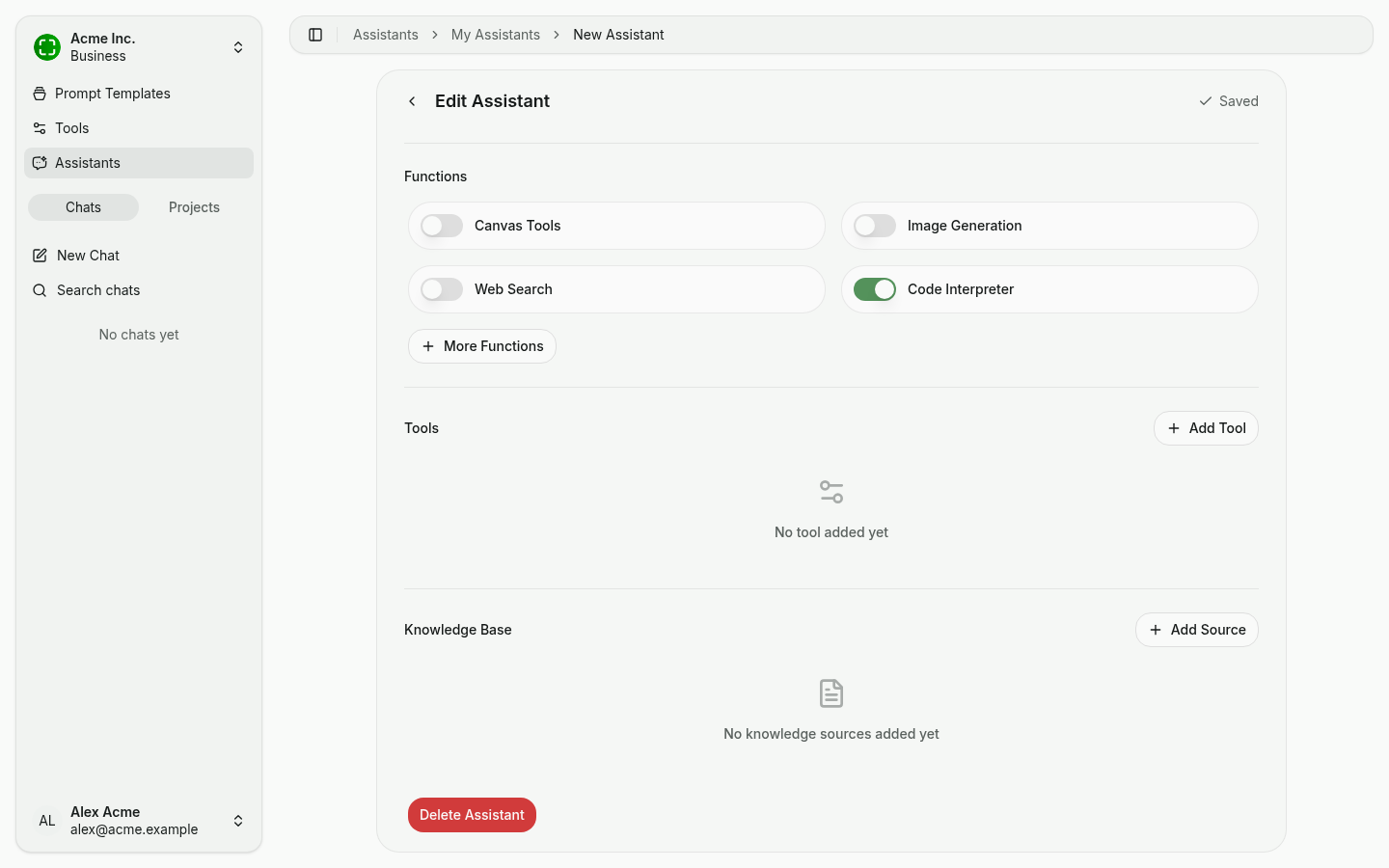
Toggle specific capabilities on or off for the assistant. Visible by default:
- Canvas Tools — Allow the assistant to create and edit documents in the canvas view.
- Image Generation — Enable the assistant to generate images from text descriptions.
- Web Search — Allow the assistant to search the web for current information.
- Code Interpreter — Enable the assistant to write and run Python code in a sandboxed environment.
More Functions exposes additional capabilities like URL extraction or BPMN diagrams. Which functions are available depends on the feature toggles your organization has enabled — see Feature Toggles.
Assigning Tools
Use + Add Tool to attach one or more tools to the assistant. When a tool is assigned, the AI can invoke it during conversations to extend its capabilities. See Tools & MCP Integrations for details on available tools.
Adding Knowledge Sources
Use + Add Source under Knowledge Base to upload documents or connect external data sources that the assistant can reference when answering questions. Knowledge sources are indexed and searched automatically using retrieval-augmented generation (RAG). See Knowledge Sources for supported data types and configuration options.
Deleting an Assistant
At the bottom of the editor you'll find a Delete Assistant button. A confirmation dialog protects against accidental deletion — the action is permanent.
Sharing the Assistant
The top-right of the editor has a Share button (or Manage sharing once at least one share exists). Sharing lets you grant view-only or edit access to specific colleagues, a group, or the whole organization. If the assistant uses tools, the dialog also handles sharing those tools alongside it. See Sharing for the full flow.
Using an Assistant in Chat
When starting a new chat or within an existing conversation, open the assistant picker to select an assistant. Once selected, the assistant's instructions, model, tools, and knowledge sources are applied to the conversation. You can switch assistants at any time.
Searching and Filtering Assistants
If your organization has many assistants, use the search bar in the assistant picker to filter by name or description. Assistants are organized so you can distinguish between your personal assistants and those shared across the organization.