
Account & Personal Settings
The user menu at the bottom-left of the sidebar lets you manage your nunq account, active sessions, and personal preferences.
Account Overview
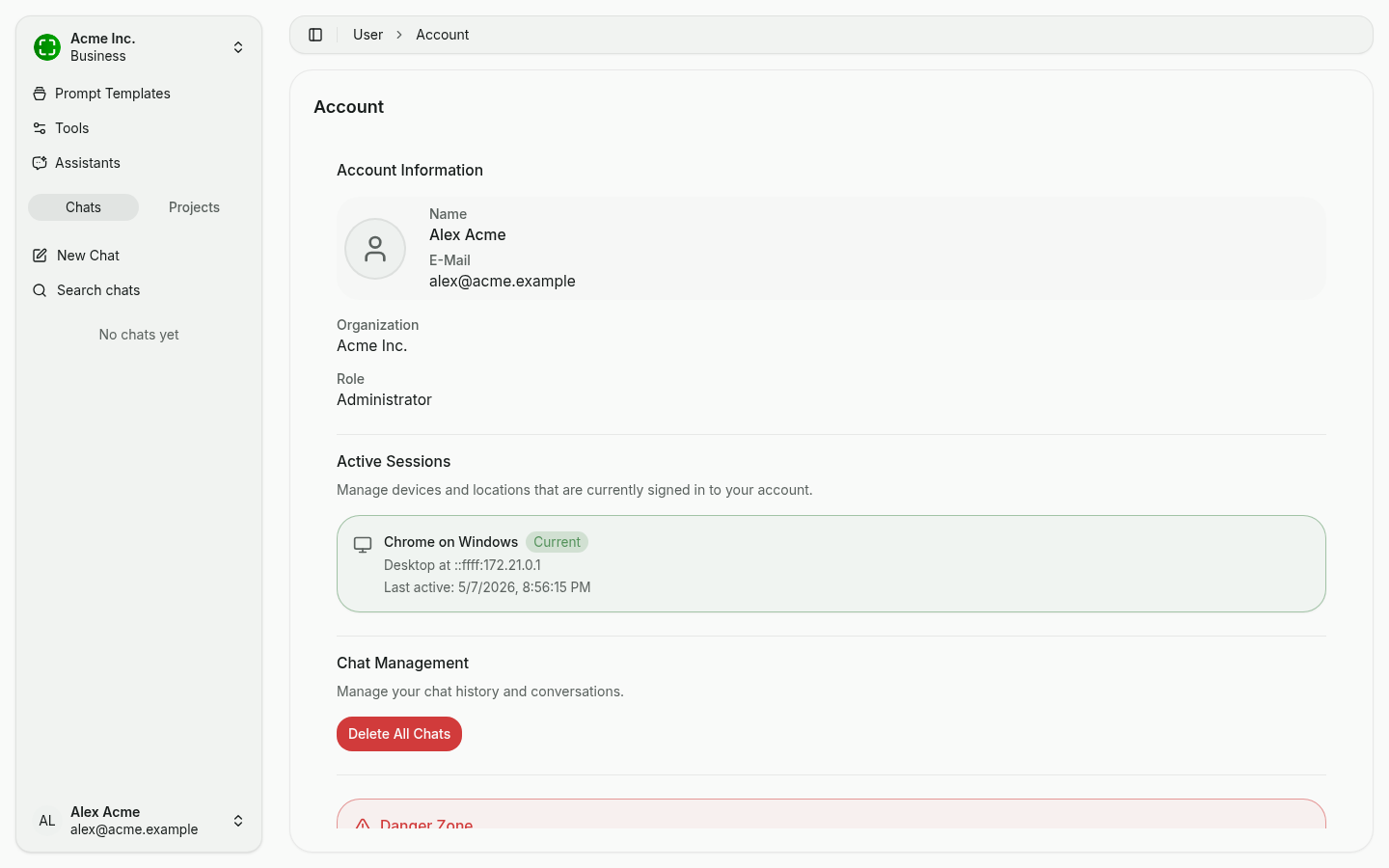
Choose Account from the user menu to open an overview of your profile, active sessions, and data-management actions.
Account Information
Shows your name, email, organization and role (e.g. Administrator). This data comes from your identity provider (Microsoft Entra ID or Google) and cannot be edited directly inside nunq.
Active Sessions
Lists every device and browser currently signed into your account. Each session shows:
- Device/browser (e.g. Chrome on Windows)
- A Current badge for your active session
- IP address and time of last activity
You can sign out individual sessions if you suspect a device is compromised.
Chat Management
Delete All Chats removes your entire conversation history irreversibly. This wipes every chat and project on your account.
Danger Zone
At the very bottom you'll find actions for permanent account deletion. These are irreversible and require a separate confirmation.
Personal Settings
Choose Settings from the user menu to open personal preferences.
Language
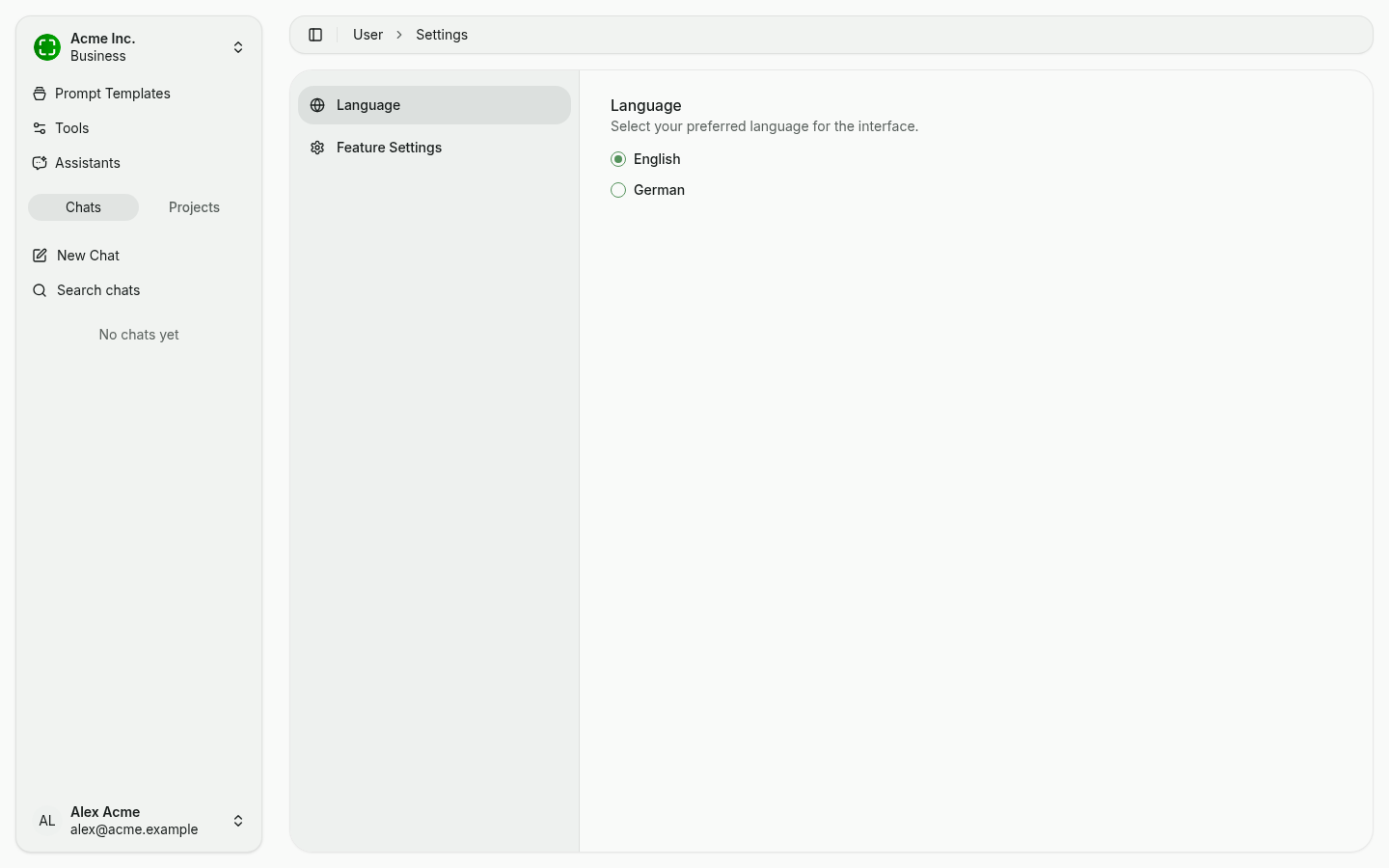
Switch between English and German. The selection changes the UI language immediately and is stored per user.
Feature Settings
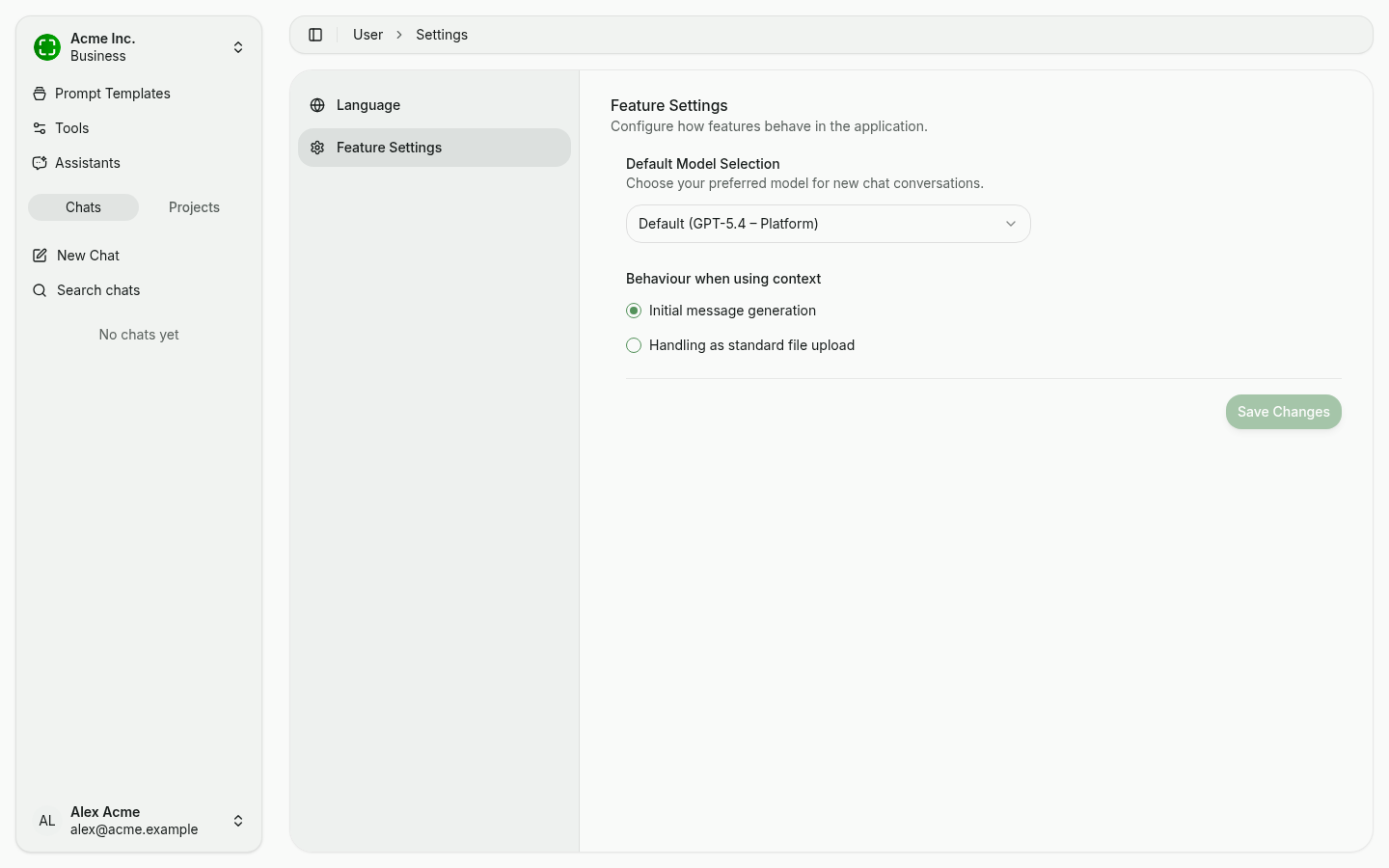
- Default Model Selection — Choose which model is preselected for new chats. The Default option follows your organization's configured default model.
- Behaviour when using context — Controls how nunq handles pinned applications and screenshots coming from the desktop app:
- Initial message generation — Context flows into the first message automatically, without appearing as a visible attachment.
- Handling as standard file upload — Context appears as a visible file attachment that you can remove manually.
Apply changes with Save Changes.