
Groups
Groups bundle several members into a named unit so you can share resources (tools, assistants, prompt templates) with all of them at once — without picking each person individually.
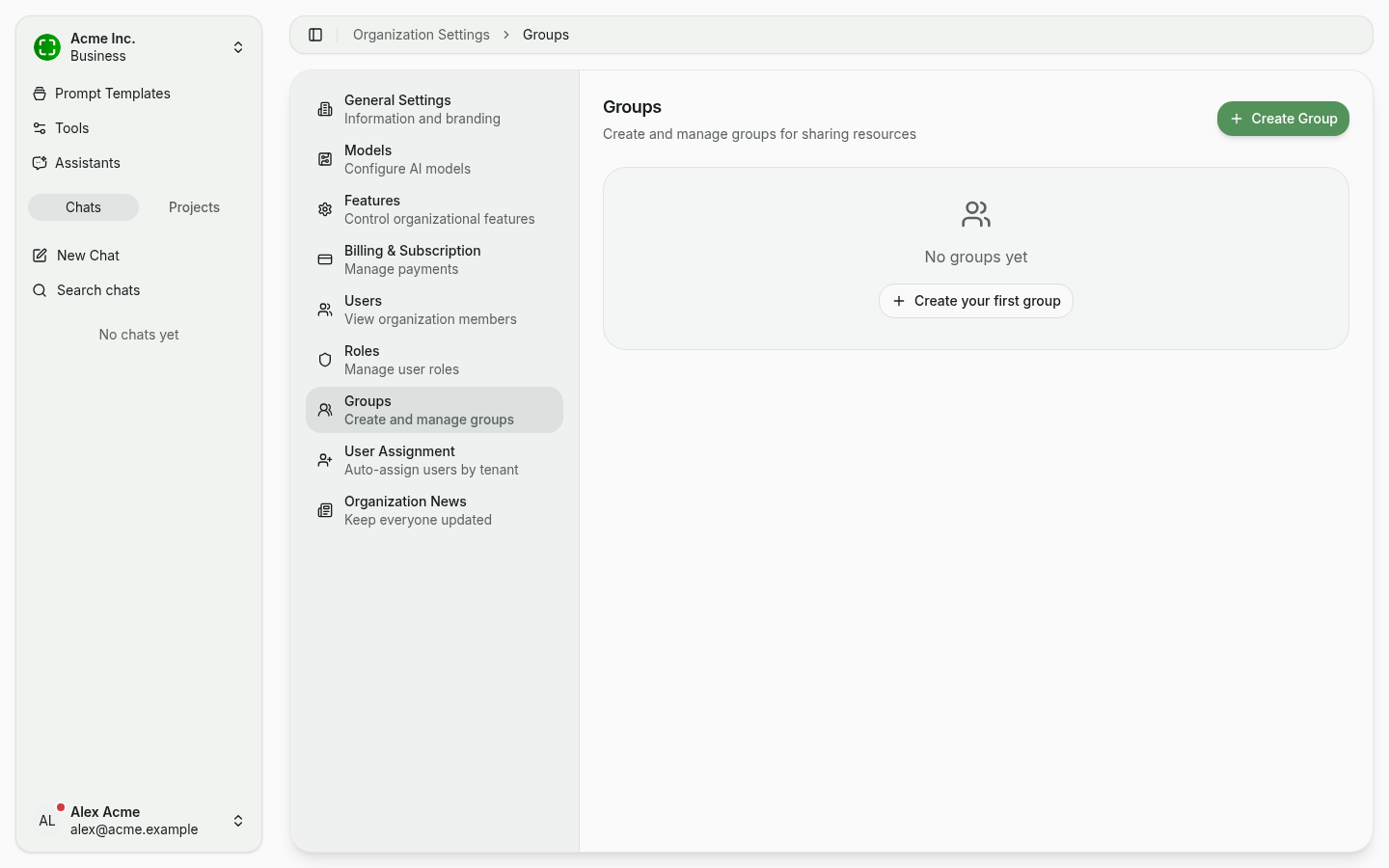
Who can create groups?
By default, Administrators and Editors can create groups; Members cannot. You can change this in Role Permissions — toggle the Create column in the Groups row for the role you want to grant access to.
Create a group
- Open the Groups tab and click + Create Group.
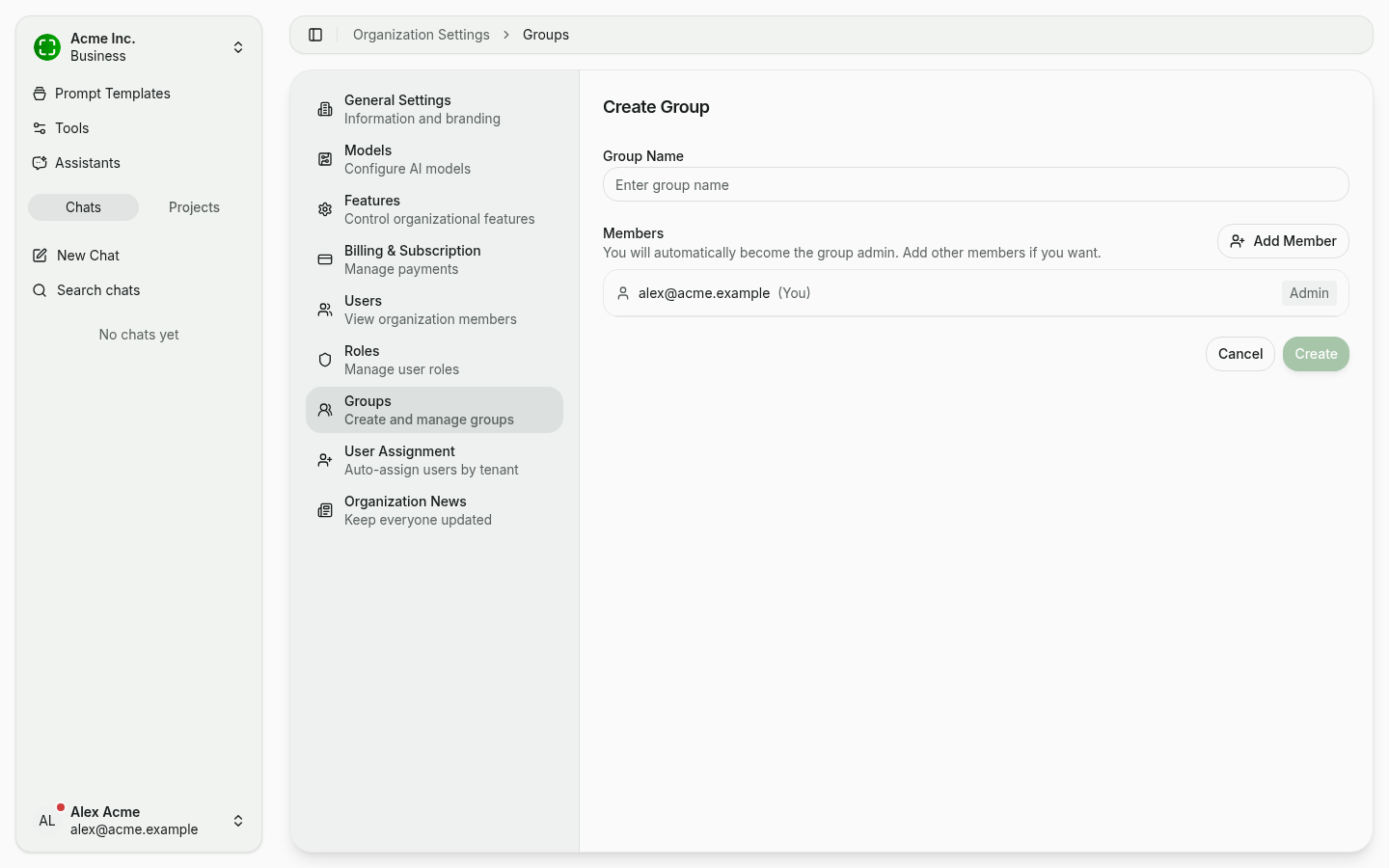
- Pick a meaningful name — e.g. "Sales DACH" or "Product team".
- You're automatically added as the Group Admin. Use Add Member to pull in other people from the organization and assign each one a role.
Group roles
A group has three roles, mirroring the organization-level structure:
| Role | What it can do |
|---|---|
| Admin | Edits shared resources, shares new resources with the group, and manages members & settings. |
| Editor | Edits shared resources and shares new resources with the group. |
| Member | Views and uses resources shared with the group. |
Whoever creates the group becomes its Admin automatically and can promote other members later.
Share resources with a group
From the share dialog of a resource — an assistant, tool, or prompt template — pick the group as the recipient and choose View & Use or Edit. The full sharing flow is documented under Sharing.
Related
- Sharing — share assistants, tools, and prompt templates with this group.
- Users & Roles — manage members and assign organization roles.
- Role Permissions — control which roles can create groups.