
Users & Roles
Manage the people in your organization, assign roles, and track seat usage. Management is split across three separate sections in Organization Settings: Users, Roles, and User Assignment.
Users
The Users tab shows every member of your organization, their role, and their activation status. A single tab now combines what used to live under "Administrators" and "Users" — admin rights are simply granted via the role.
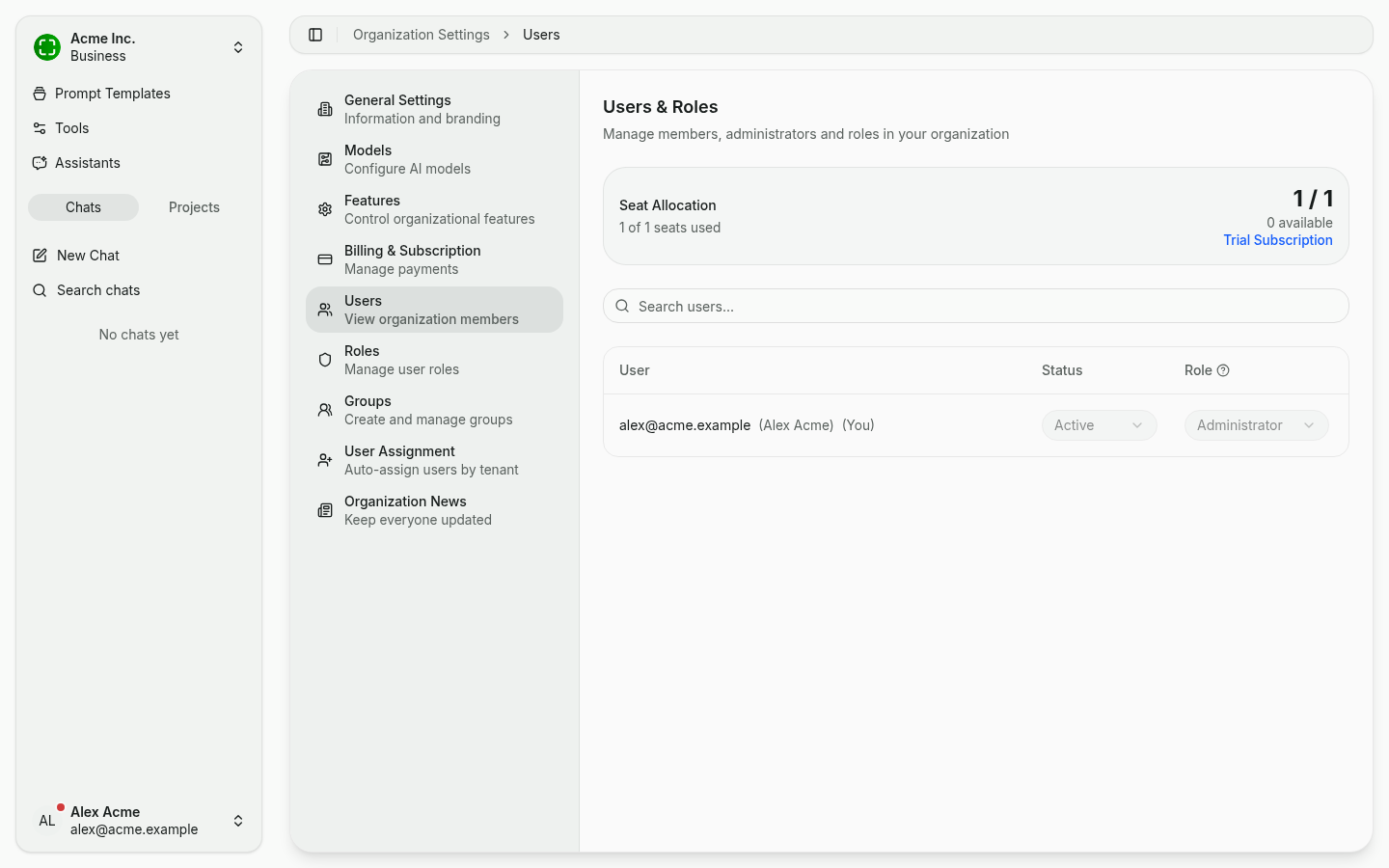
- Seat Allocation shows used and available seats (e.g. 1 of 1 seats used, 0 available).
- Search filters the list by name or email address.
- Right-click the Status or Role column header to open a filter menu.
- Each row has two select fields:
- Status — Active or Inactive. Inactive members do not consume a seat.
- Role — Administrator, Editor, or Member.
- Every status or role change is gated by a confirmation dialog.
- You cannot change your own status or role, and at least one administrator must remain in the organization at all times.
WARNING
Ensure at least one administrator remains in the organization at all times. Without an administrator, the platform can no longer be managed.
Roles
nunq has three organization-level roles with different scopes:
| Role | Description |
|---|---|
| Administrator | Full access to all organization settings and resources. Manages users, role permissions, models, feature toggles, billing, user assignment, and news. Always has full access in every permission matrix. |
| Editor | Can create and share resources, and manage groups. By default, editors can create tools, assistants, and prompt templates, share them with individuals as well as the entire organization, and create groups. |
| Member | Standard access to the platform and to anything shared with the member. By default, members can create their own tools, assistants, and prompt templates and share them with individuals, but not organization-wide; they also cannot create groups. |
Exactly which actions Editors and Members are allowed to perform is configurable per resource type under the Role Permissions tab — see Role Permissions. The "share" capabilities listed above drive the Sharing flow that members use day-to-day.
All new members join with the Member role by default.
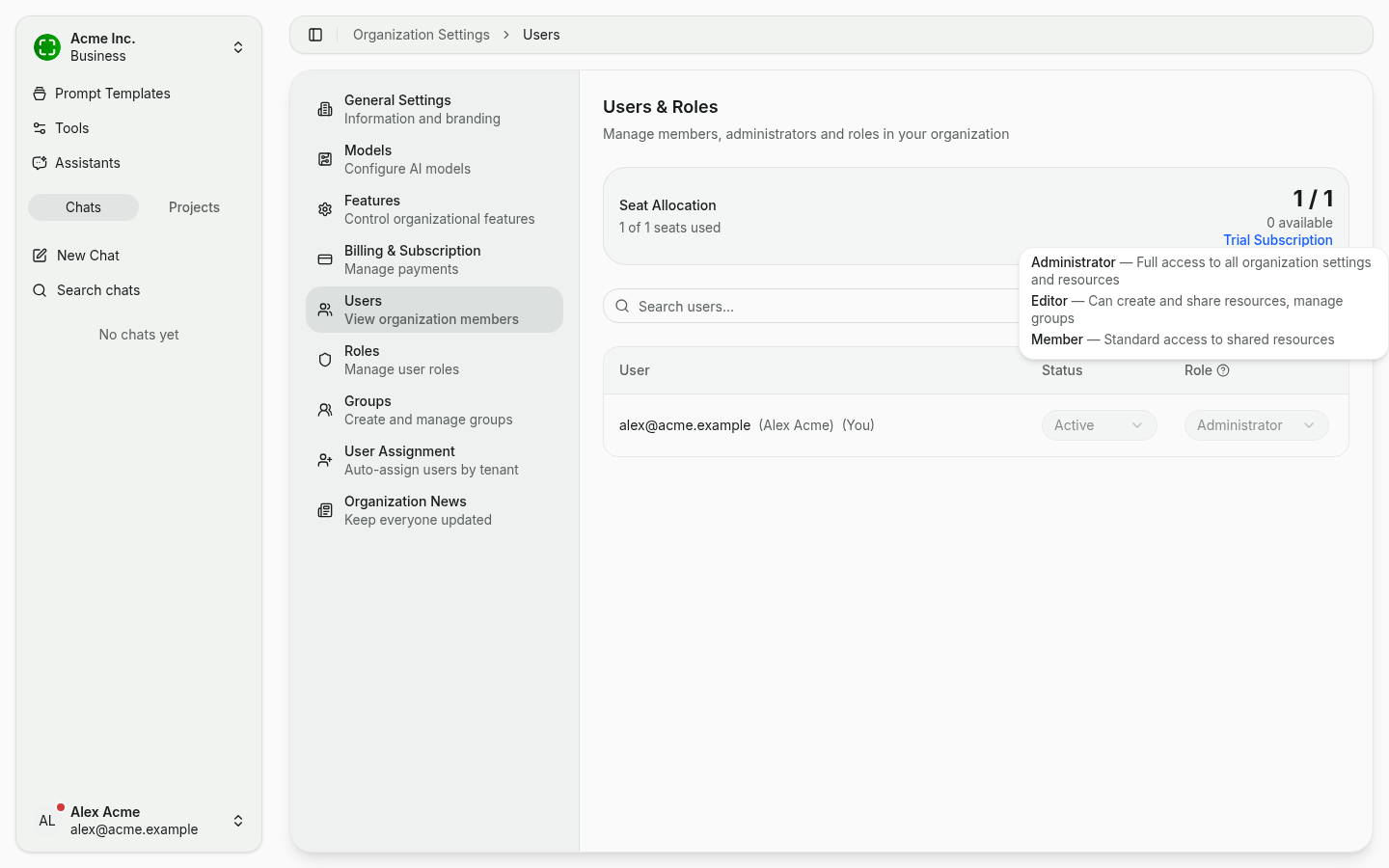
A short description of each role is available any time via the help icon next to the Role column:
Seat Management
Your nunq subscription includes a set number of seats — one per active user.
- When all seats are taken, no new users can be activated until a seat is freed or additional seats are purchased.
- To free a seat, set a user to Inactive.
- The Trial Subscription link (top right of the seat box, when applicable) takes you directly to plan changes.
See Billing & Subscriptions for changing your plan or adding more seats.
User Assignment (Microsoft Entra)
The User Assignment tab automates how new users from your Microsoft Entra tenant are mapped. For details and configuration, see User Assignment (Entra).